This article explains how to insert a video into a presentation made using Keynote. Instructions for iPhone, iPad and Mac.
Advertising
Advertising
Insert video into presentation in Keynote on macOS
Go to Keynote on Mac and open the presentation you want.
1) Select the slide where you want to insert the video, or add a new one.
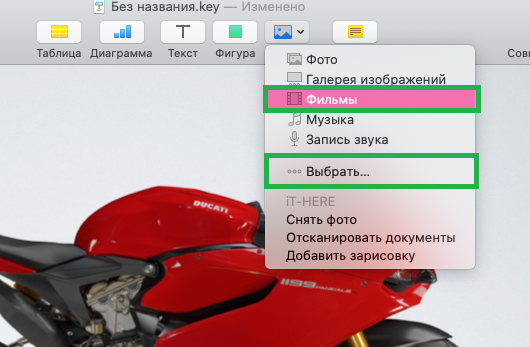
2) ClickMediaon the toolbar, thenFilmsto download a video from the media gallery, orChooseto import video from another folder. Not all video formats will play when viewing a presentation in iOS.
Advertising
Advertising



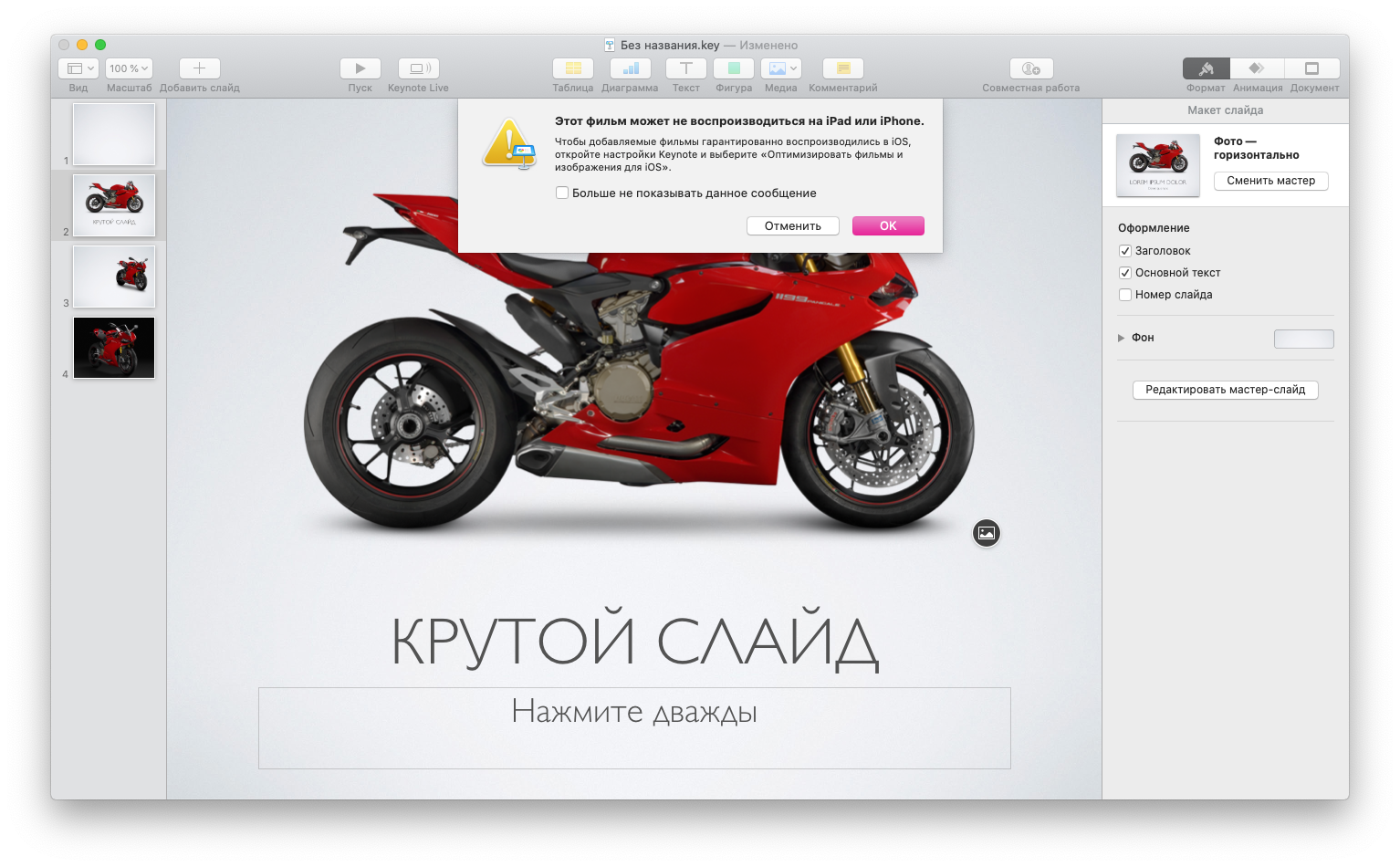

3) The inserted video can be placed in any part of the slide, reduced or enlarged by pulling the edges with dots.
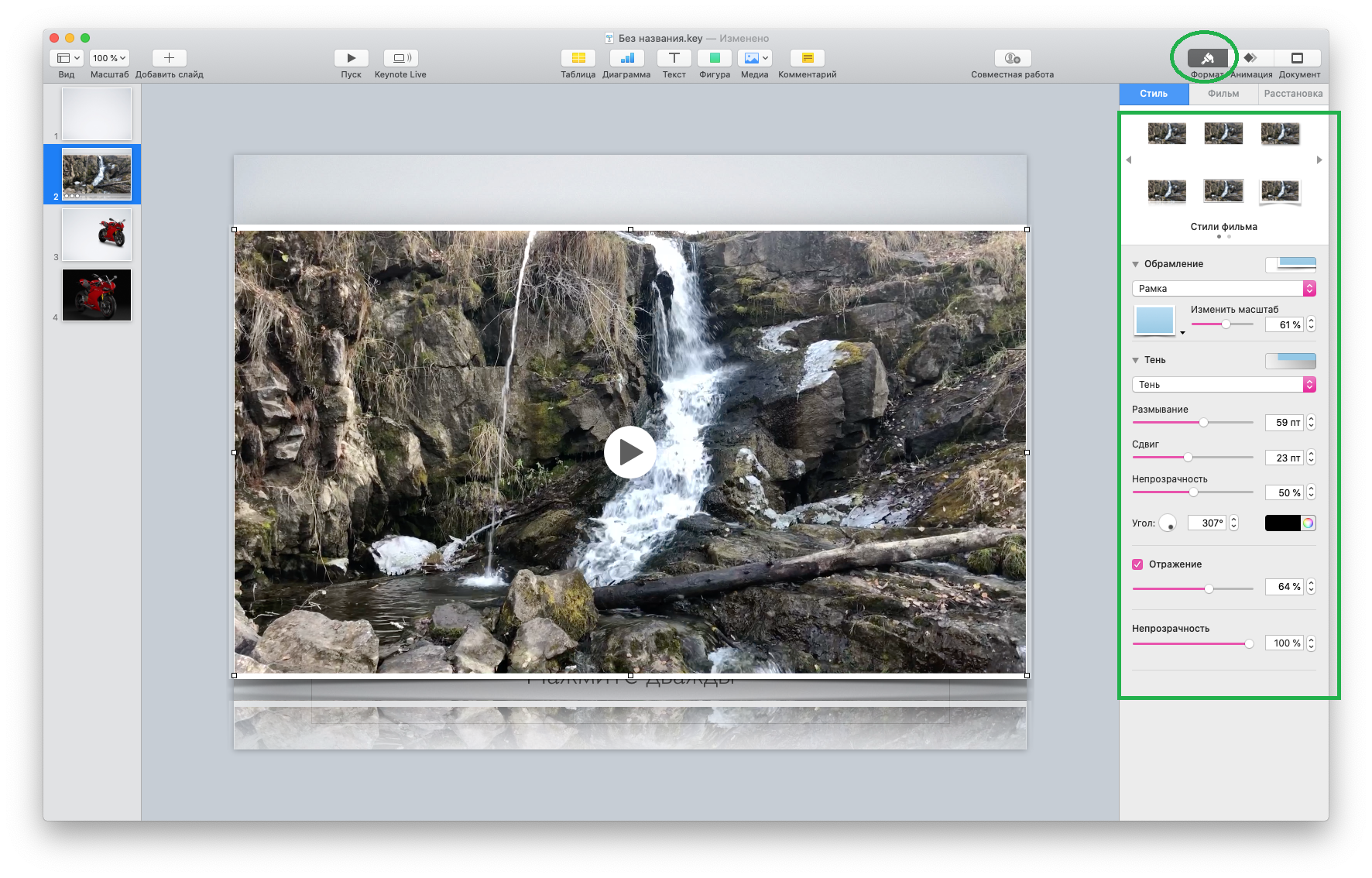
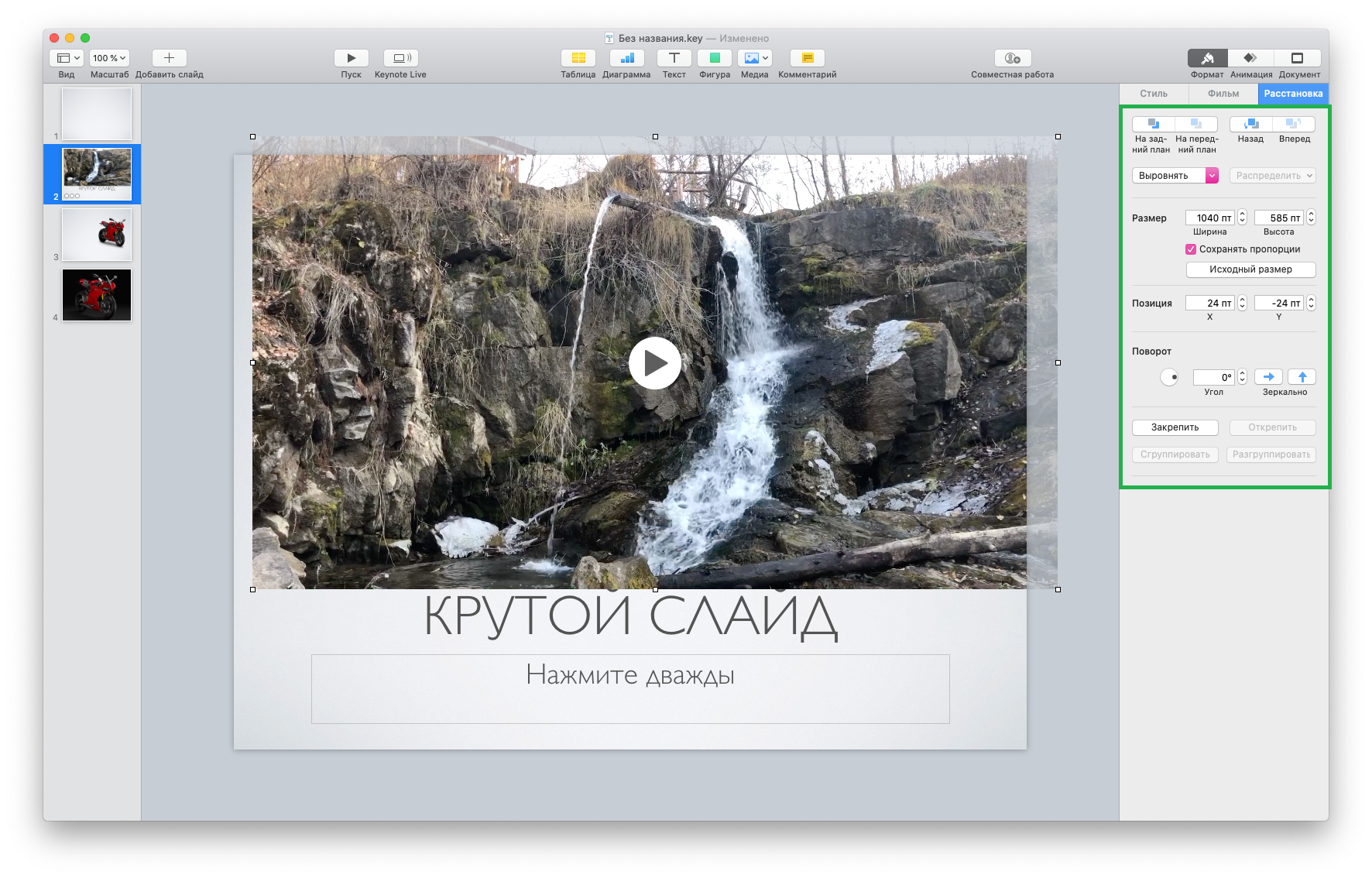
To format the video, selectFormatin the upper-right corner.
In theStyleyou can add and customize video frames, reflections, shadows, and set transparency.

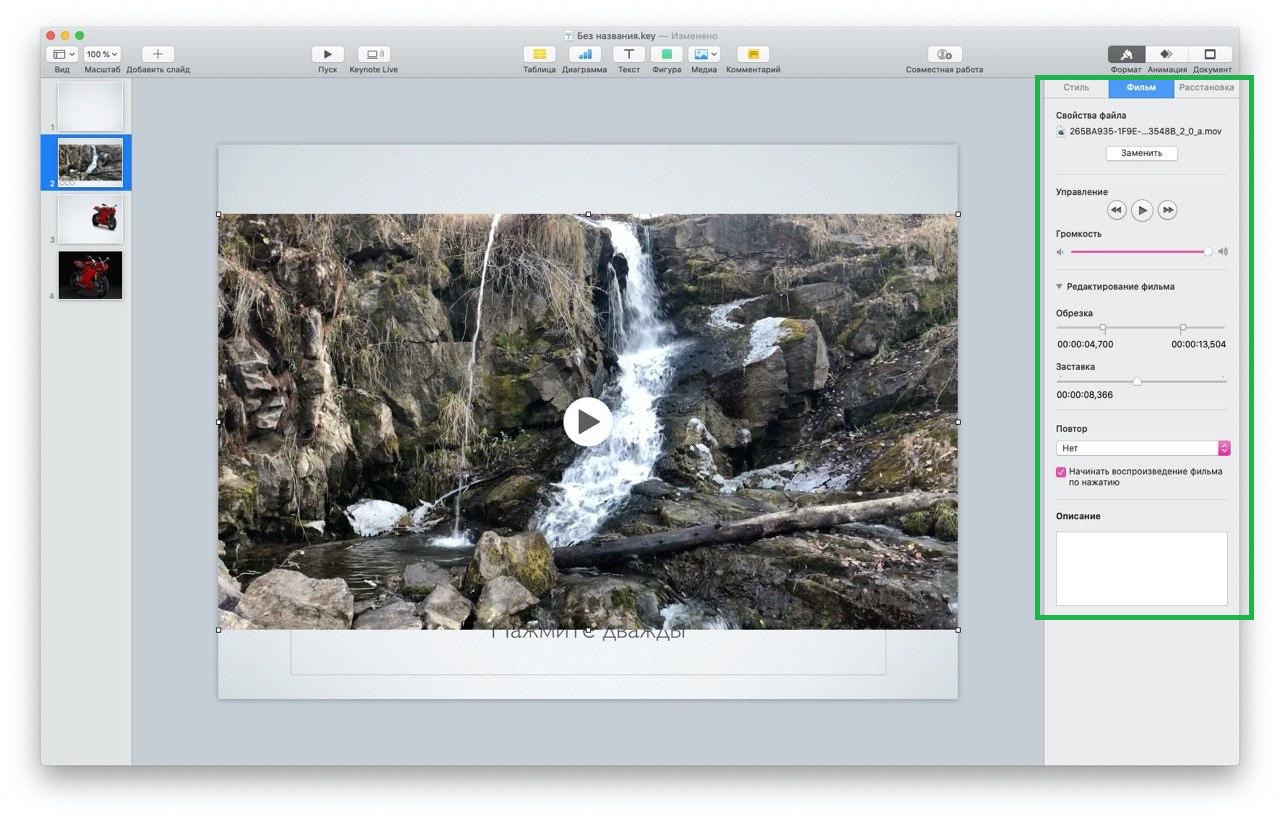
In theMovieYou can adjust the playback volume,crop the video and select the frame that will be the poster of the video before playback. You can also specify how the video will be played: by touch or automatically (to do this, uncheck “Start movie playback by clicking”); You can also loop the video so that it repeats until you move on to the next slide. Here you can add a description to the video.

In theArrangementvideo display settings are available - on the front or background, set the exact size, mirror, and also pin.

Insert video into presentation in Keynote on iOS or iPadOS
Access Keynote on your iPhone or iPad and open the presentation you want.
1) Select the slide where you want to insert the video, or add a new one.
2) Click the plus sign at the top of the screen.
3) SelectPhoto or videoto insert media from the image gallery, orPaste fromto add video from another folder.
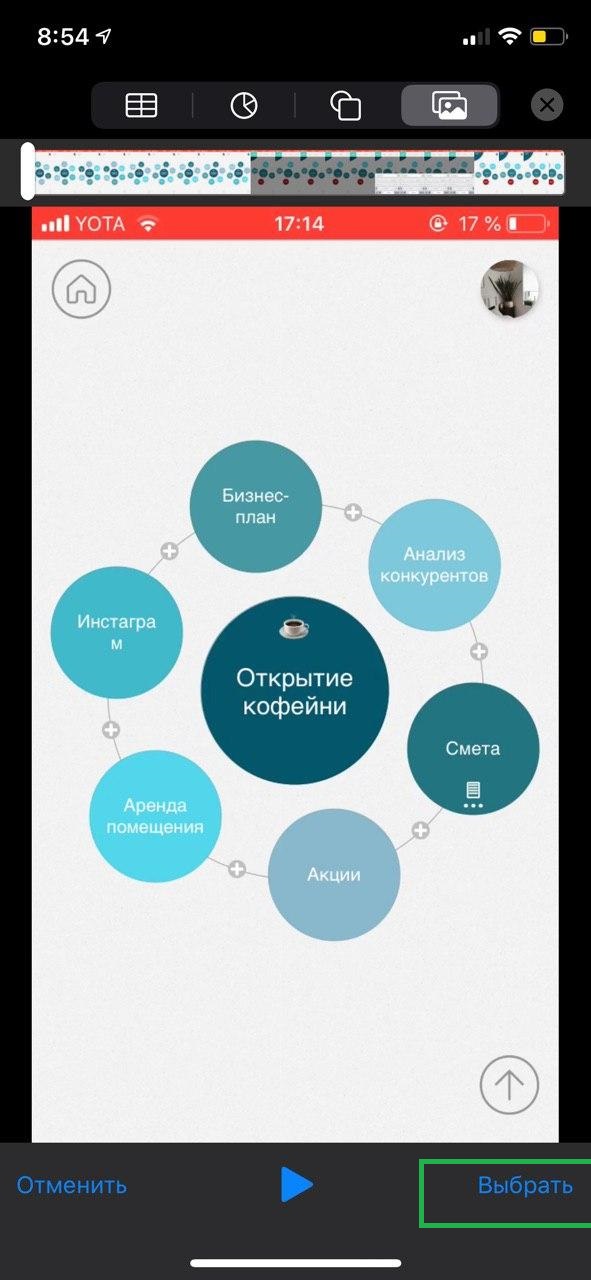
4) ClickChoose— the video will appear on the slide.
The inserted video can be placed in any part of the slide, reduced or increased by pulling the edges with dots.






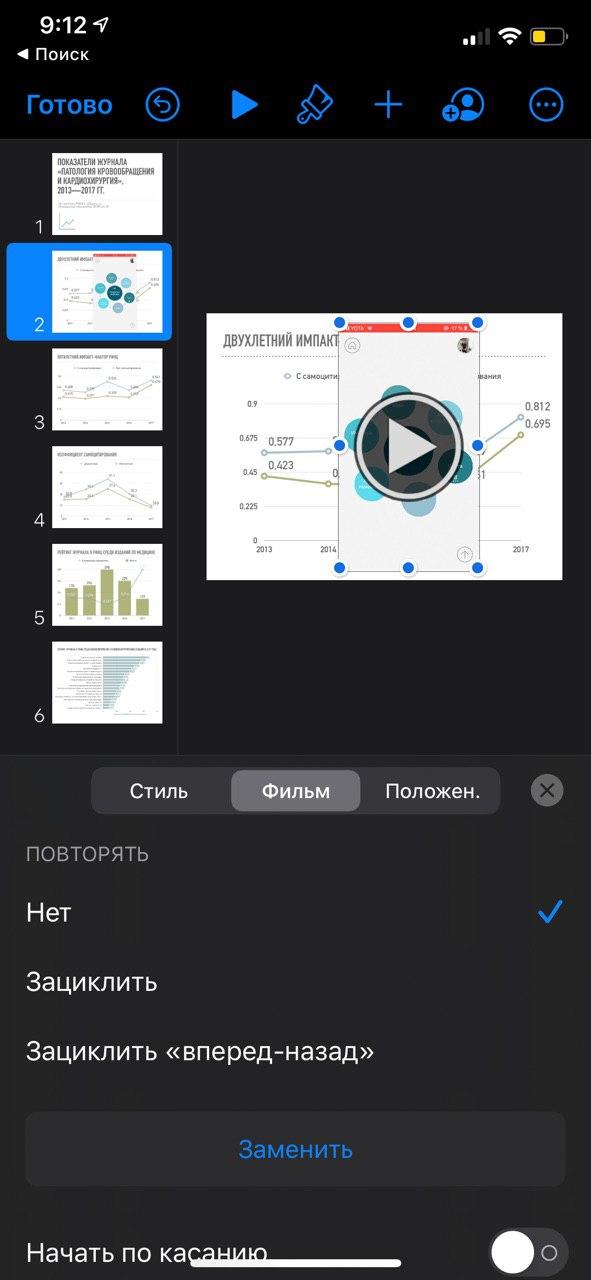
By default, the video will play in the presentation after touching any part of the screen. But this can be changed.
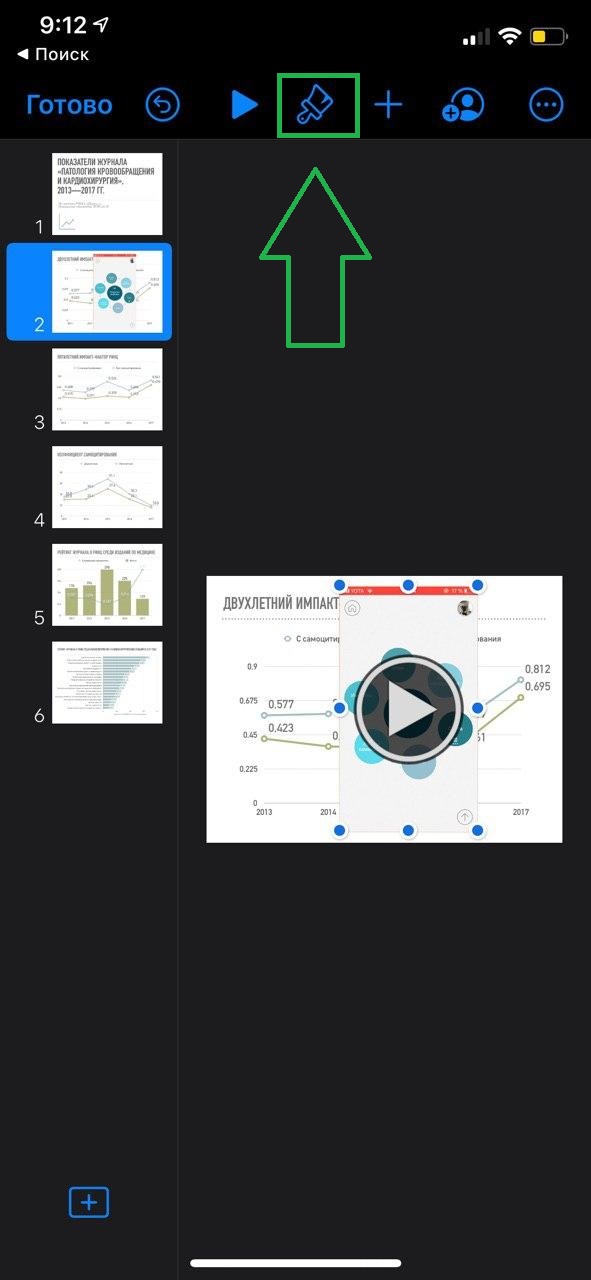
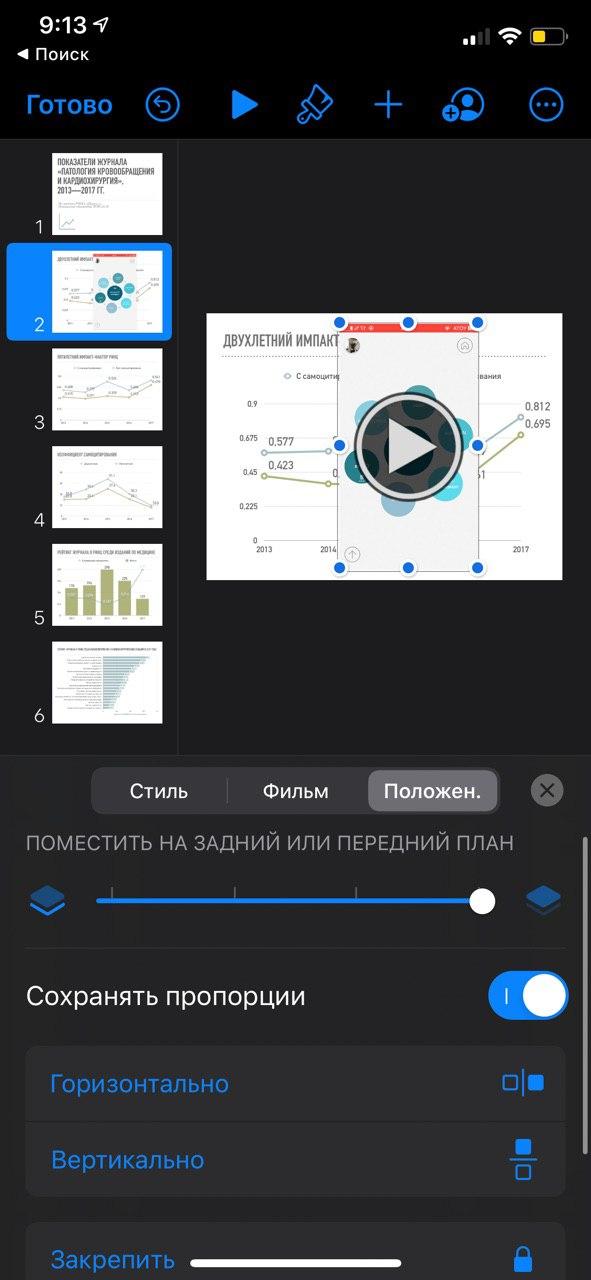
To format the video, click on the brush icon at the top.

Advertising
Advertising
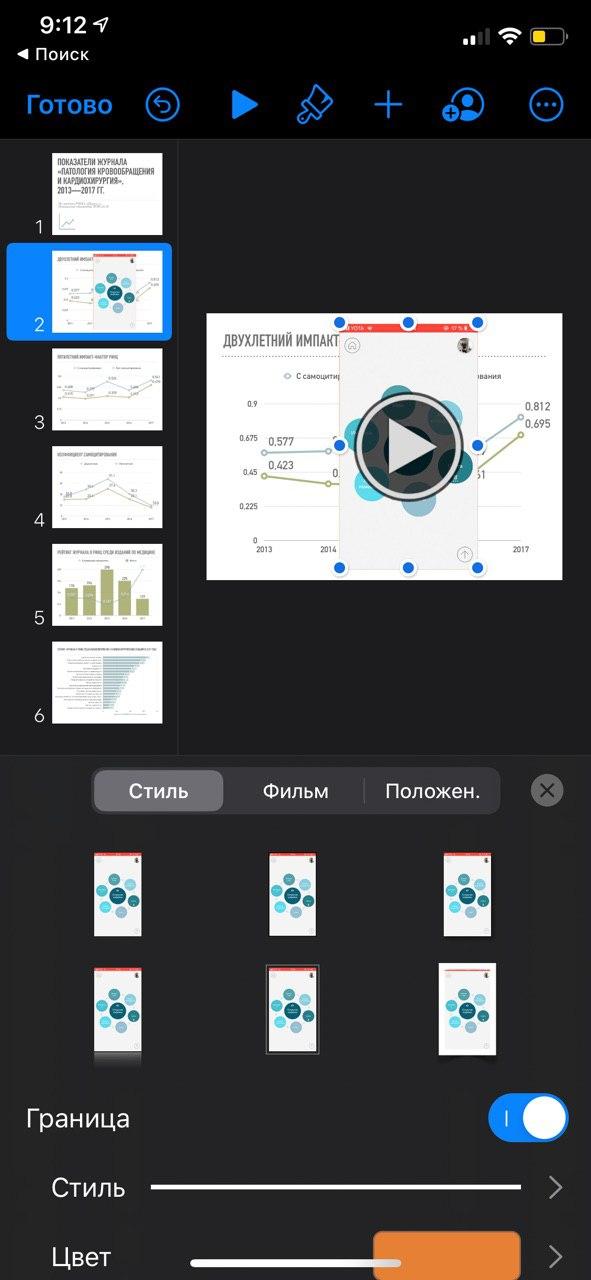
In theStyleyou can add video borders, choose their width, color and style, and also set video transparency.

In theMovie— choose how the video will be played:by touch or automatically (to do this, you need to disable “Start by touch”); You can also loop the video so that it repeats until you move to the next slide. Here you can add a description to the video, which will not be visible in the presentation, but can be read using VoiceOver technology (if someone uses it). On an iPhone, unlike a Mac, you cannot trim the video and adjust the sound.

In thePositionVideo display settings are available - on the foreground or background, mirror vertically or horizontally, and also pin.

To remove a video from a slide, tap the video once, then selectDelete.

