Screen Time is now available on Mac and is as easy to use as it is on iPhone and iPad. Be it for
Like Screen Time in iOS, on the Mac function also allows you to restrict access to specific sites. This is very useful if you have a child who is too early to see certain things.
Advertising
Advertising
Below we’ll show you how to restrict access to specific sites on the Mac, or only allow access to certain sites.
Screen Time Features
There are two different options to restrict access tosites through Screen time. You can either deny some sites or allow only some to be used. Depending on the age of your child, choose the one that suits you best.
We will talk about both methods so that you can decide which one is right for you.
Advertising
Advertising
If you have Family Access configured, then you can use your account. Otherwise, you will need a child account.
How to block access to specific sites
Open System Preferences and follow the steps below.
1) Select the Screen Time section.
2) If you have Family Access configured, select your child’s name from the top left.
3) From the left menu, select Content and Privacy, and then select the Content tab.
4) Under Web Content, select No Adult Sites. Many adult sites will be blocked automatically, but you can add others to the list.
5) Click the Configure button.
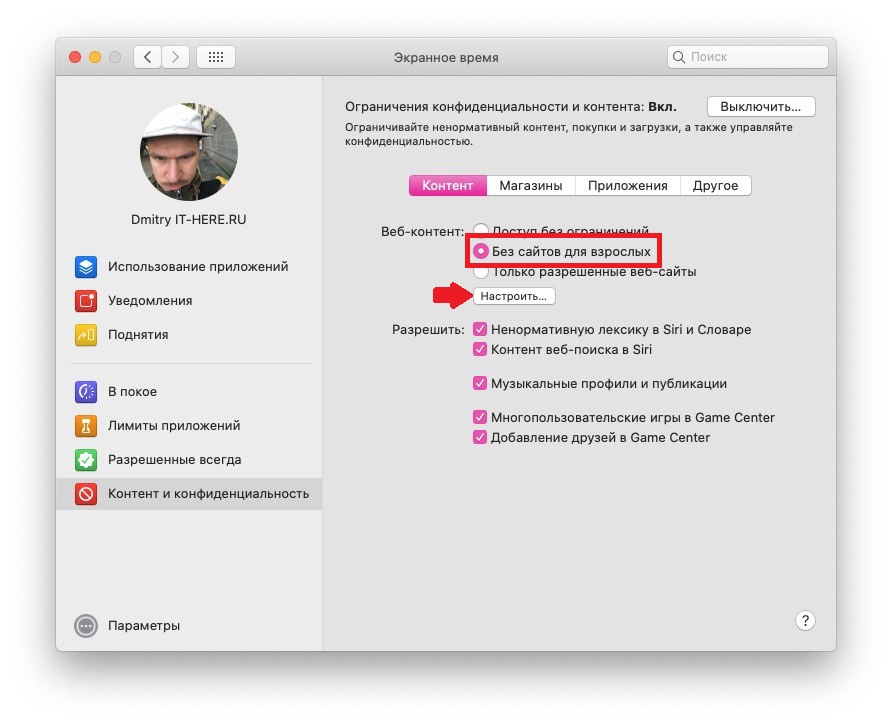

6) You will see two sections Allow and Limited. To add a site to any of the sections, just click plus.


7) Paste the link to the site and click OK.


8) When you are finished adding sites, click Finish.
How to allow access to some sites
Open System Preferences and follow the steps below.
1) Select the Screen Time section.
2) If you have Family Access configured, select your child’s name from the top left.
3) From the left menu, select Content and Privacy, and then select the Content tab.
4) Under Web Content, select Only allowed websites.
5) Click the buttonTune.
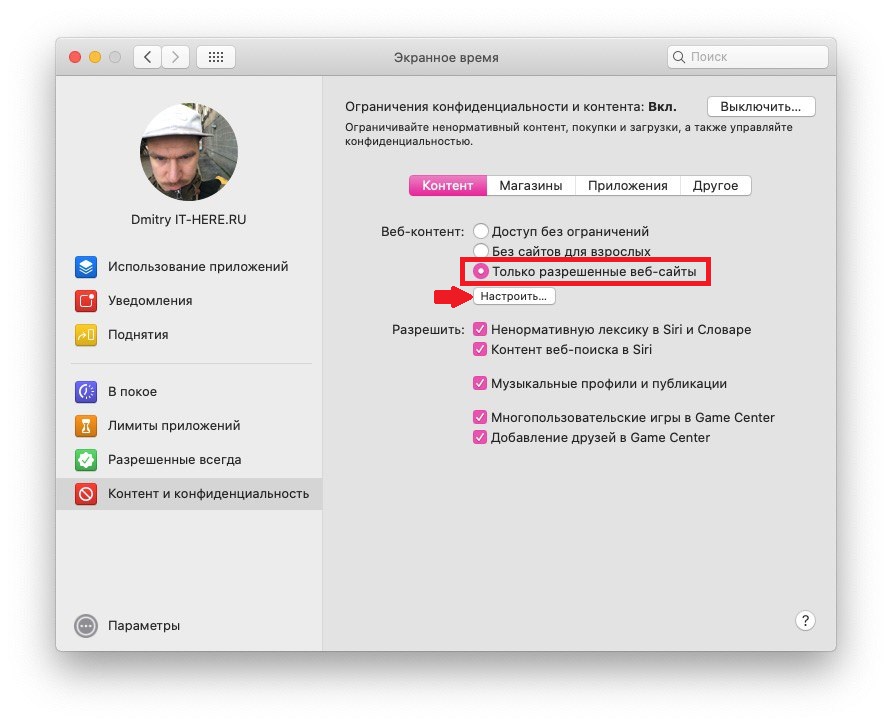

6) You will see a list of added sites. To delete a site, select it and click minus. To add a site, click plus.
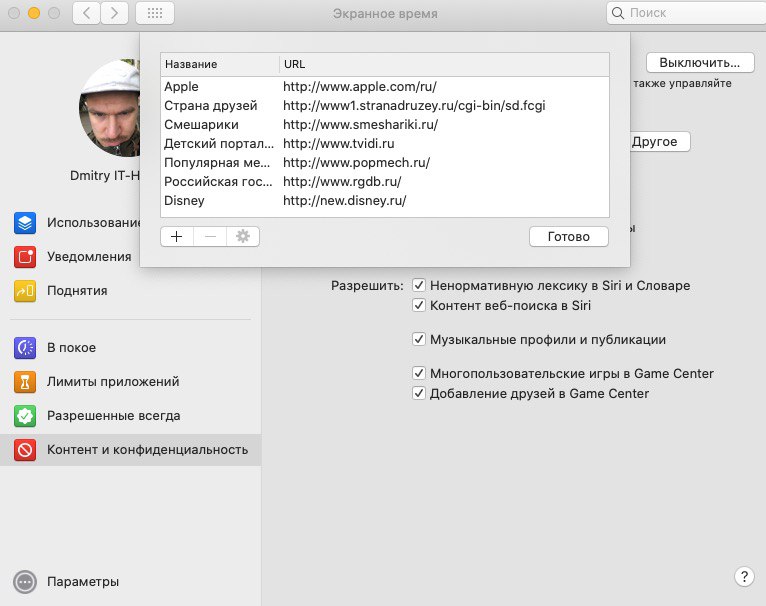

7) Paste the link to the site and click OK.
8) When finished, clickIs done.
Screen time is a great feature to limit content, limit programs, etc. Now you can be sure that your child will not see anything superfluous on the net.