If you use Zoom to communicate with friends and colleagues, then it will be useful for you to know how to broadcast
Sharing your iPhone or iPad’s screen with Zoom is pretty easy, and below we’ll show you how to do it.
Also read: How to add filters and masks from Snapchat to Zoom
How to cast a screen to Zoom on iPhone and iPad
You do not need an account to join the conference, but you will need it to organize a conference. So first, sign up for Zoom, and then proceed with the instructions.
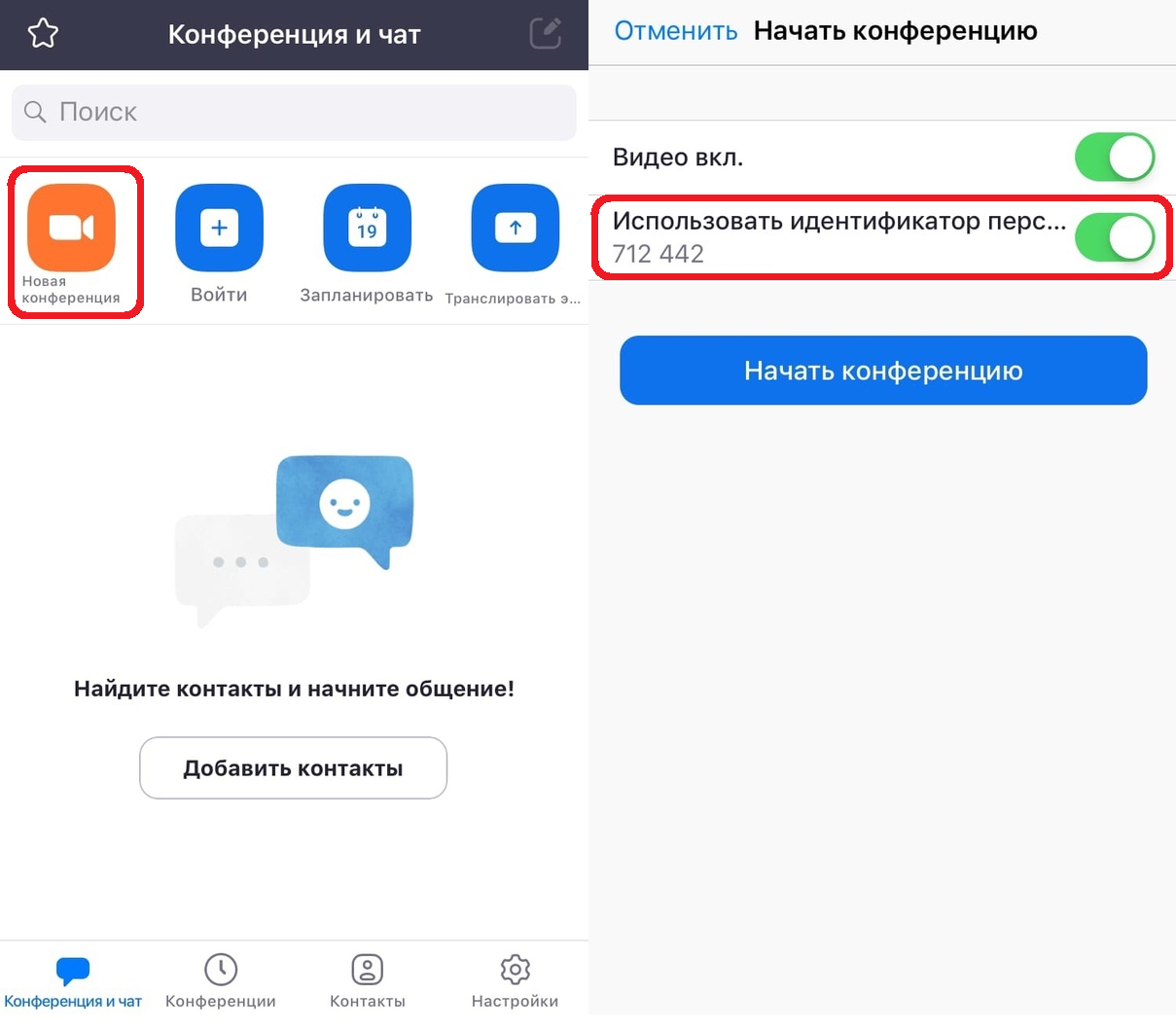
- Open the Zoom app on your iPhone or iPad.
- Once you are logged in, from the main screen selectNew conference.
- Here, be sure to turn on the switch next toUse person idand pressStart a conference.

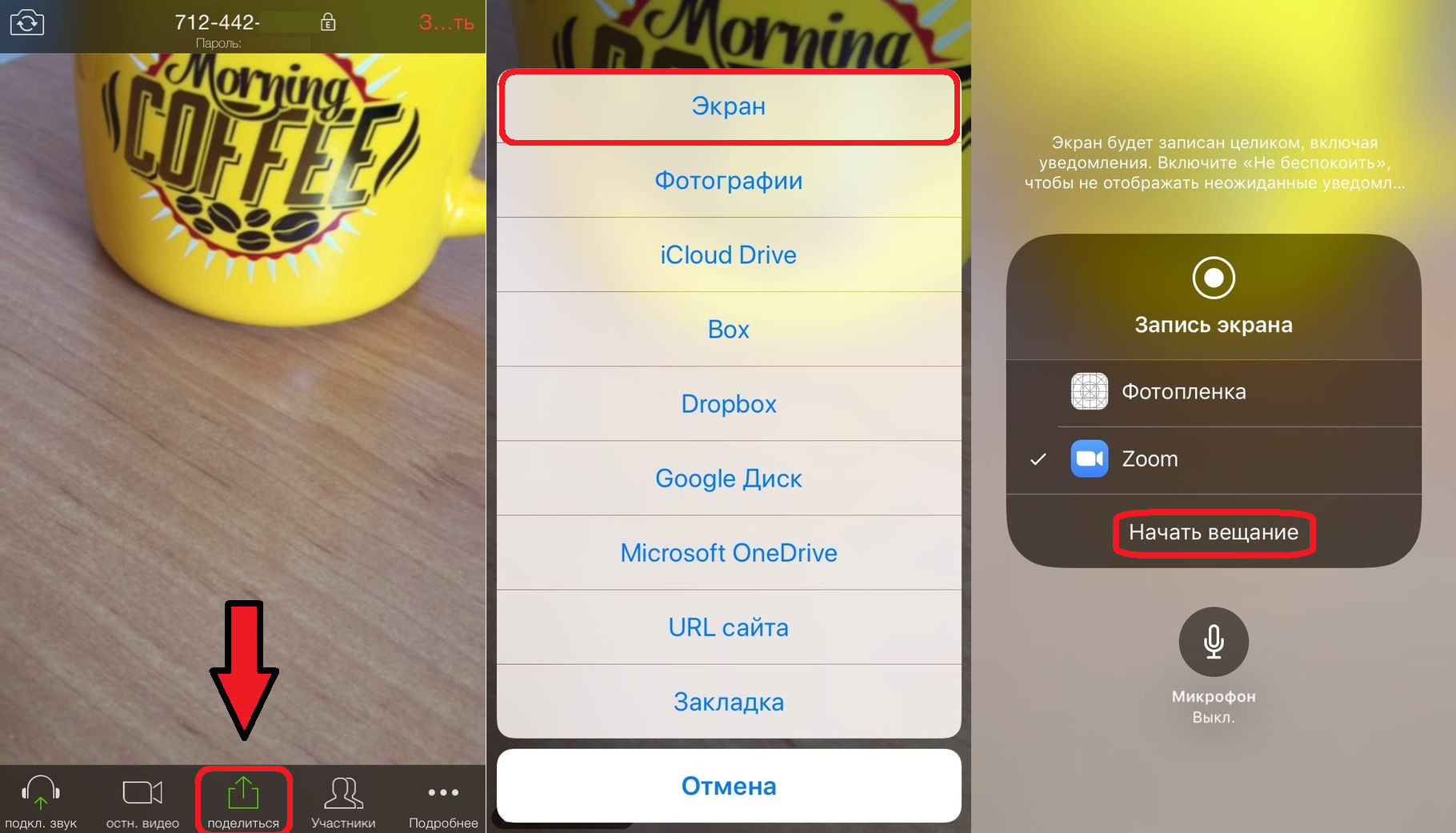
- Your iPhone or iPad's camera will launch and your Zoom meeting will begin. Click the buttonShareat the bottom of the screen.
- Select hereScreenat the very top of the list.
- Check the box for Zoom and clickStart broadcastingto broadcast your screen. You can also enable or disable your microphone using the icon below.

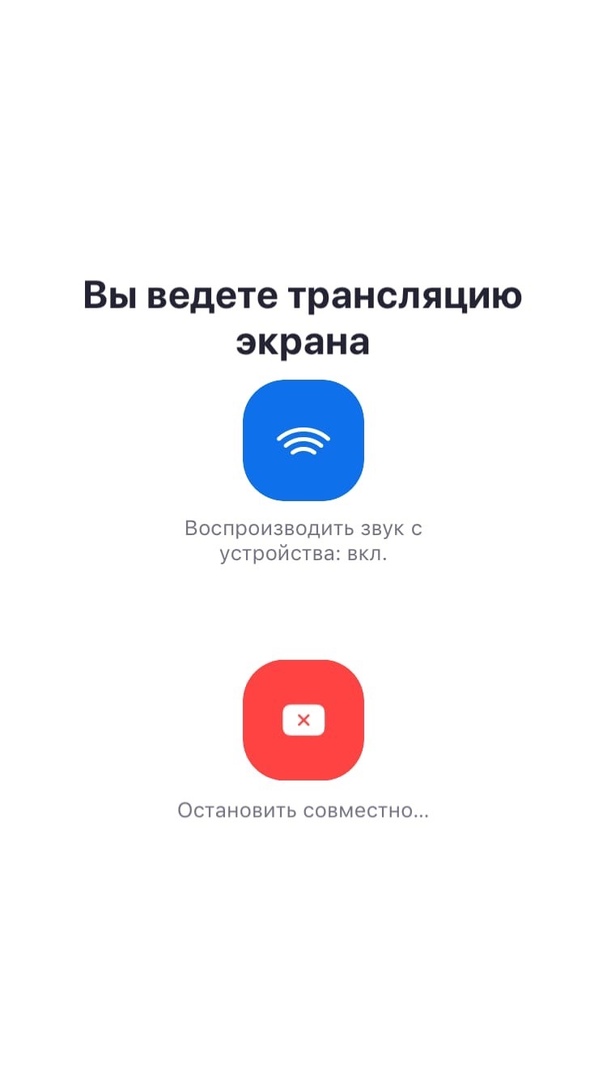
A message will appear on the screen stating that your screen is being broadcast to the conference, and all the contents of your screen will be visible to the conference participants.

If you need to connect to someone else's conference, you can also broadcast your screen to it in the same way.
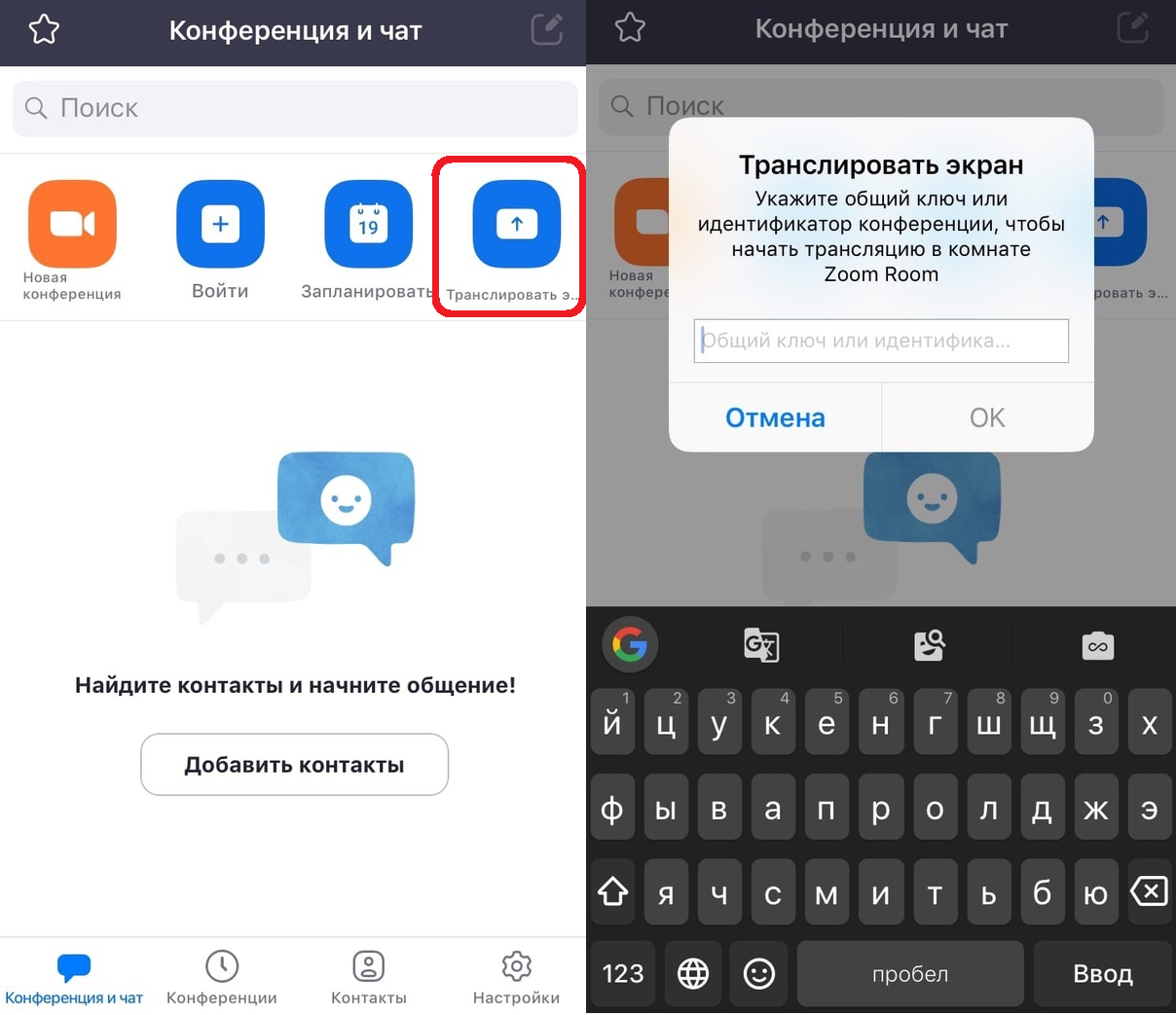
In addition, everything can be made even easier by clickingCast screenon the main screen.
After that, just enter the identifier and start broadcasting your screen.

Now you know how to cast your iPhone or iPad to Zoom. We hope the feature will be useful to you.
As you may have noticed, the function is similar to normal screen recording in iOS.
If you have multiple iOS devices, you evenYou can broadcast the screen from one conference to one, and simply communicate from the other in the same conference. This can be especially useful for online lectures and presentations.
Zoom can be used for free, but there arepaid subscription. The free version has a time limit of 40 minutes for group conferences (up to 100 participants). If this is not enough for you, you can apply for a paid subscription that removes this restriction. There is also an option that will increase the number of participants to 300 people.
Zoom is not the only service with this feature. You can also share your screen in Google Hangouts, Skype, etc.
If you have not used the service before, you can use our detailed instructions on how to use Zoom on iPhone and iPad.
There is also an article for those who cannot choose between Zoom and Skype.