By default, the Safari browser on macOS downloads files to the folderDownloadsactive user. And if
On a Mac you can select as directorySafari downloads any folder you have access to. Please note that following these instructions will not affect the settings of other browsers and applications, nor will it change the location of files that are already in the folderDownloads. If you use Chrome or Firefox besides Safari, you will have to configure these browsers separately.
How to change file download location in Safari
- Open the Safari browser on your Mac (if you haven’t already)
- In the top panel, click onSafari, in the context menu selectSettings


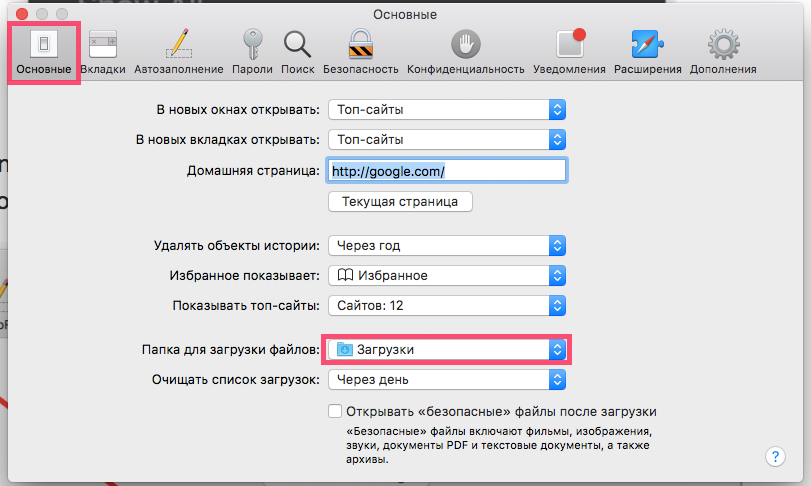
- Open the tabMainand find the itemFolder to download files. Click on the folder name

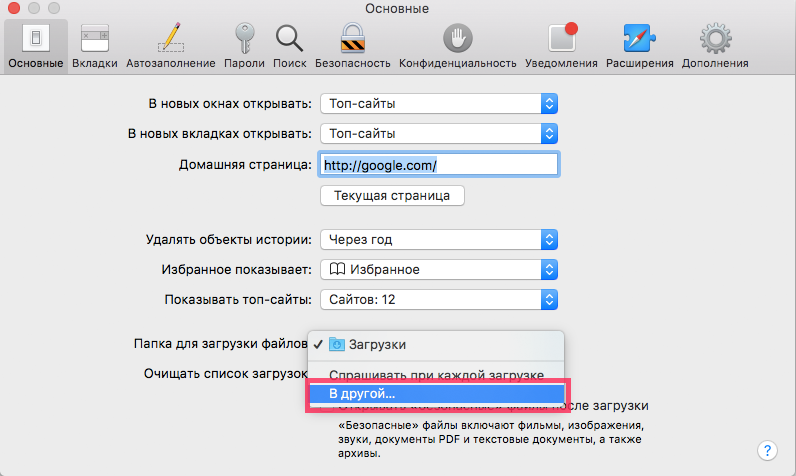
- In the drop-down list, clickIn another…

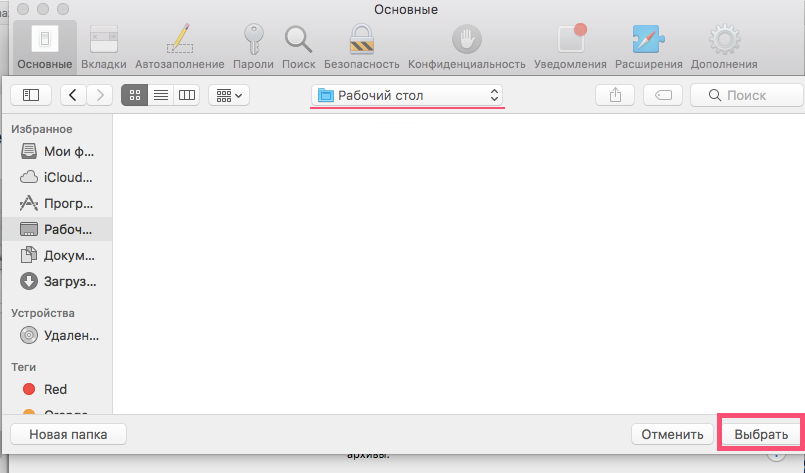
- Open the folder where Safari will save files (in our case, the desktop) and clickChoose

- Close settings
Now all files that you download through Safari will be saved in the selected folder or directory. In our case, they will appear on the desktop.
As already mentioned, earlier downloads remain in the old folder. If necessary, move them to a new folder.
How to return the default settings
If you previously changed the folder for downloading Safari files, return everything as it was possible in the following way:
- Open your browser and click onSafari. Select from the drop-down listSettings.
- In the General tab, find the itemFolder to download files. Click on the folder name
- Select from the drop-down listDownloads. If this option is not available, clickIn another…and find the folderDownloadsmanually, pressChoose
- Close settings
That's it: now files downloaded via Safari will again be saved in the folderDownloads.
Most users prefer to leavedefault download settings for the convenience of organizing files on your computer: all browsers and applications download files to this folder by default, so it’s much easier to search for the file you need in one folder than to try to remember which browser you used and where you saved an important document.
Note that this instruction is not only suitable.for a regular build of Safari, but also for Safari Beta and Safari TEchnology Preview on the poppy. The settings for the version of Safari on Windows will vary slightly due to the interface features of another system.