By default, folder icons look like regular folders, but this can be changed. As a folder icon you can
Advertising
Advertising
For a folder with family photos, you canset one of your photos. You can set your company logo on the folder with working files. In any case, this is quite easy to do, and below we will explain everything to you.
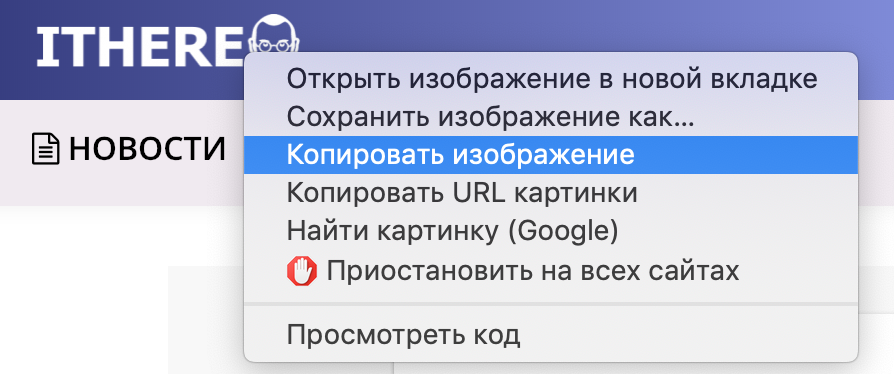
Copy image
If you want to use a picture from the Internet, you just need to right-click on it and copy the image.

Advertising
Advertising
If you use a picture from a computer, you can open it and then copy it through the menu bar.
Most importantly, you need to copy the image to the clipboard. How you do it does not matter.
Set the image as a folder icon
OpenFinderand select the folder whose icon you want to change.
Then select menuFile>Propertiesor right-click on the folder and selectProperties.
When a new window opens:
one)Click on the folder icon in the top left corner.
2)ClickEditin the menu.
3)SelectPaste or just press CMD + V.
A new folder icon is displayed immediately.
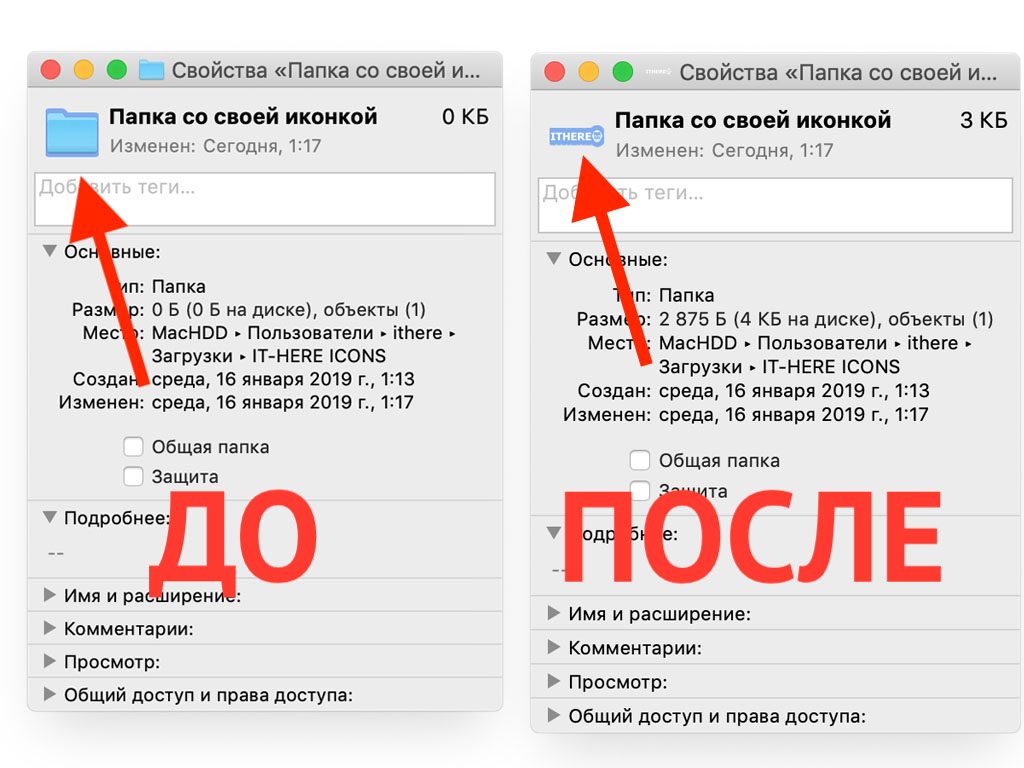

If you need to use the icon of another folder, this is also very easy.
one)Select the folder with the desired icon and openProperties.
2)Click on the icon in the top left corner and selectEdit>Copy.
3)Return to the folder whose icon you want to change, and then follow the same steps as described in the first step of the instructions.


Now two folders will have the same icon.
How to return the default folder icon
If you suddenly change your mind and decide to return the standard icons, you can do this too.
one)Select a folder and open itProperties.
2)Click on the icon in the top left corner and selectEdit>To cut.
You will immediately see the previous icon.
Changing folder icons can be useful, but now you know that this is done very quickly and easily.