In iOS 13 and iPadOS 13, Haptic Touch is more powerful.Now you can hold down the icon of any app or
Advertising
Advertising
How to change the order of applications in iOS 13 and iPadOS 13
Now you can enter the home screen editing mode in various ways.
When you hold down the icon of an application, you will see a menu with quick options for this application, as well as its widget, if available.
There will be a new option in the menuReorder applications. Click it to enter the usual editing mode of the home screen layout.
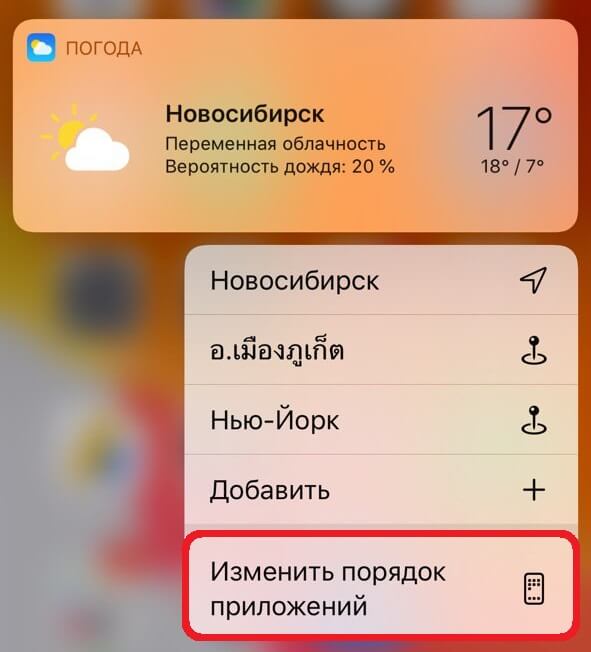

You can also continue to hold the application icon even after the menu appears. After a couple of seconds, the menu closes and the home screen editing mode is activated.
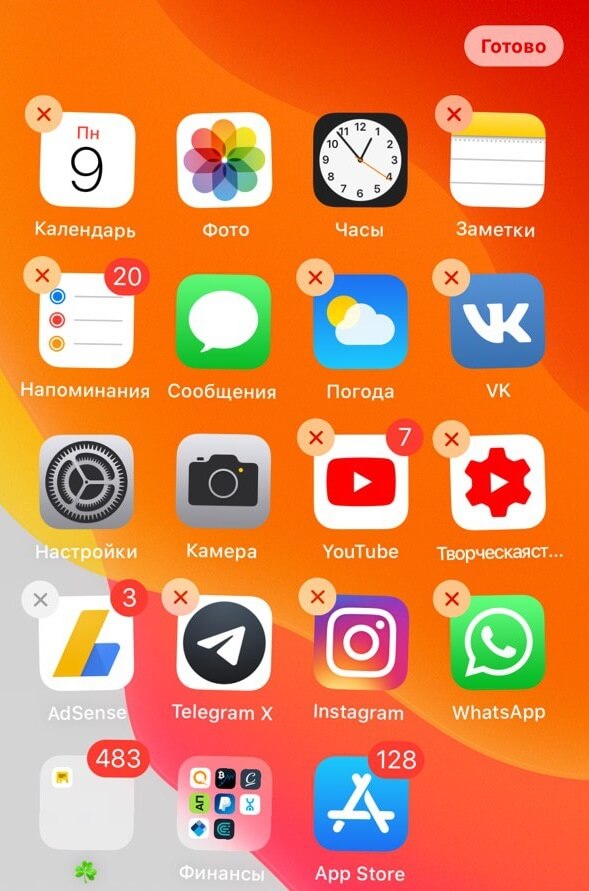

You can edit the app layoutfaster. Hold the application icon to open the menu with options, and then drag your finger to either side. The menu will disappear immediately and you can reorder the applications.
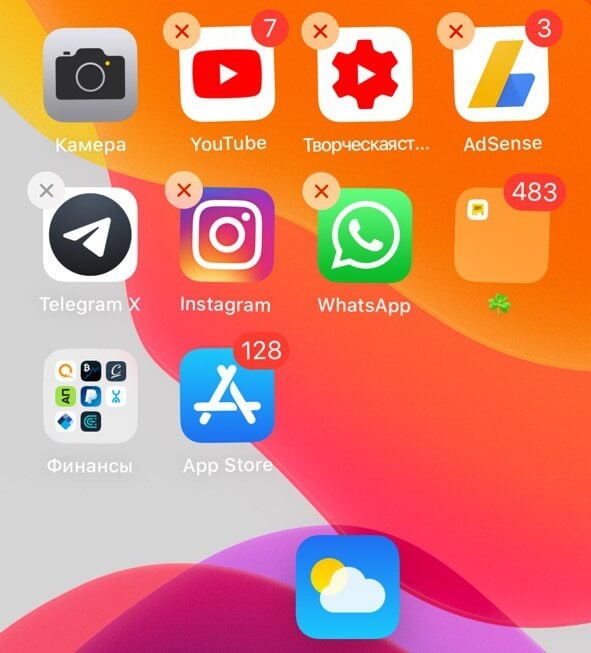

Now you can change the order of the icons tohome screen as you like. You can select several applications at once using the second finger. When done, just click the “Finish” button in the upper right corner of the screen.