Apple now makes it even easier and more convenient to limit your kids' screen time. Below we will tell you how
Limits screen of time
New Screen Time Tool - Significantpart of iOS 12 update. The function allows you to monitor the amount of time that you spend on your device. Moreover, with the help of the function you can also limit the screen time of your children.
To do this, you need to link the children's devices to your iCloud account for family access. After that, their names will appear in the Screen time section in Settings.
one)To get started, select your child's name from this list.
2)On the next screen, tapTurn on Screen Time(enable screen time). After that, you will see a message:
Screen Time. Get a weekly report with insights about your child’s screen time, and set limits and restrictions for apps, content, and privacy settings.


3)ClickSetup with Parental Controls (tunefamilyaccess).
four)On the next screen you will need to set up your Downtime schedule by selecting a start and end time.
At this time, you can call, send andReceive messages, as well as use authorized applications. Everything else, including notifications, will be disabled. Ideally, the function schedule should correspond to your child’s day routine. If you are not sure, you can skip the Downtime setting.
five)Next, the Program Limits screen will appear.Here you can set daily limits for app categories. After the time has expired, your child will need your permission to continue using the app. You can limit the time in all applications, games, social networks, etc.
You can limit the time in several categories of applications.
After choosing categories, you will need to choose the time limit itself. This can also be done later.
6)Afterwards you will see the “Content & Privacy". Here you can restrict access to some content in iTunes, App Store, Music and websites.
7)On the next screen you need to create a 4-digit password. This will be used to add time to your limit and to change your Screen Time settings.
eight)After completing all the above steps, yougo to the page dedicated to your child's Screen Time. Here you can change any settings. The main thing is don’t forget your password. You can also turn off Screen Time or remove your password.
Limits of programs and Permitted always
one)In Program Limits you will see the restrictions that were added earlier. You can see an example below:
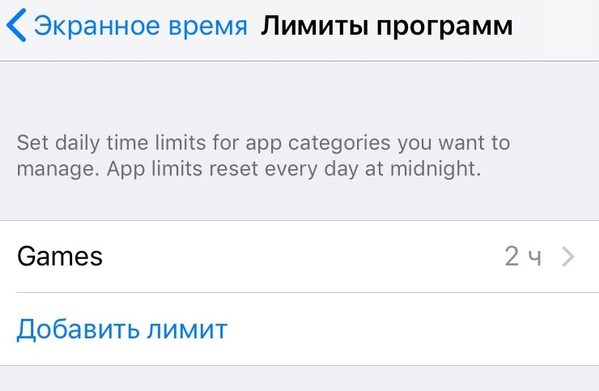

2)ClickAdd limitif you haven’t configured everything before.
3)In Allowed you will find a list of applications that are always available. By default, these will be Phone, Messages and FaceTime.
four)Press+or-next to the application to add or remove it.
Reports
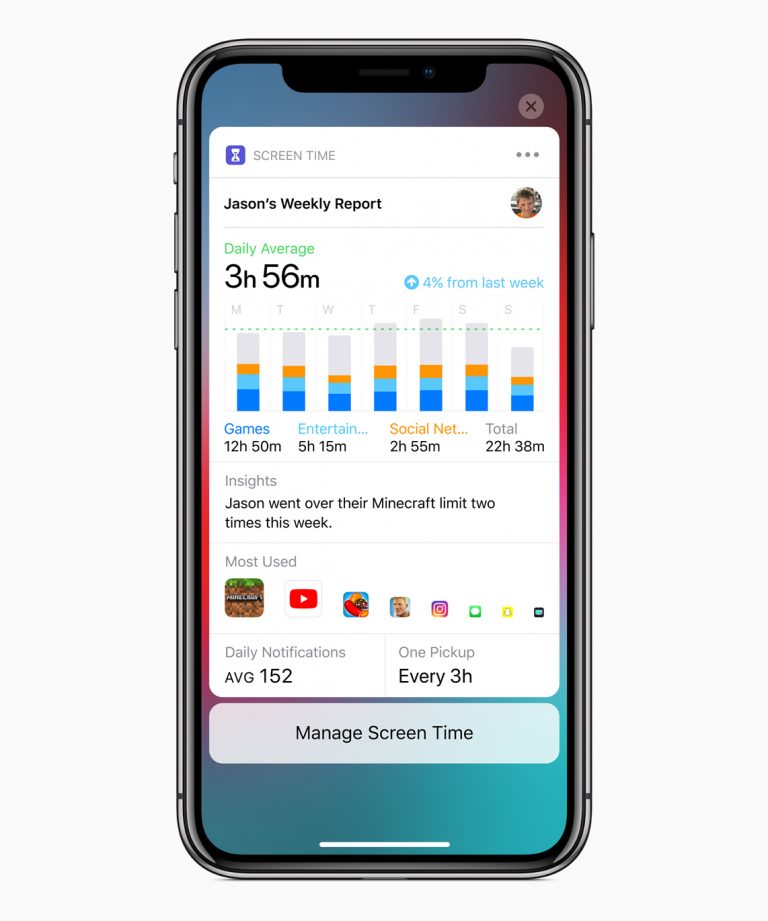
Every week you will receive reports onscreen time of their children. They will display the time spent on each application, on the categories of applications, the number of notifications, as well as the number of lifts of the device. You can view reports on the devices of your children directly from your own.
More about these reports will become known after the release of future beta versions of iOS 12. In the meantime, Apple has provided only such a screenshot:

Apple has added great tools to control children. The Screen Time function is the best of them, and in the future it will only develop and become better.
Recall that the iOS 12 update is still at the stagebeta testing, so the instructions may change slightly after the final release. Apple will release iOS 12, macOS Mojave, tvOS 12, and watchOS 5 this fall.