iTunes has a feature that shuffles the songs in your library and plays them in random order.
If you want to disable the random order of songs in iTunes, this can easily be done in several ways.
Advertising
Advertising
The first way is to do this using the special function icon, which on the computer looks the same as in iOS. The second is to disable the function in the options menu.
How to disable song shuffling iniTunes
- Open iTunes and turn on any song from your library.
- Open the Control menu, and then select Shuffle.
- Click the “Off” option so that a checkmark appears next to it.
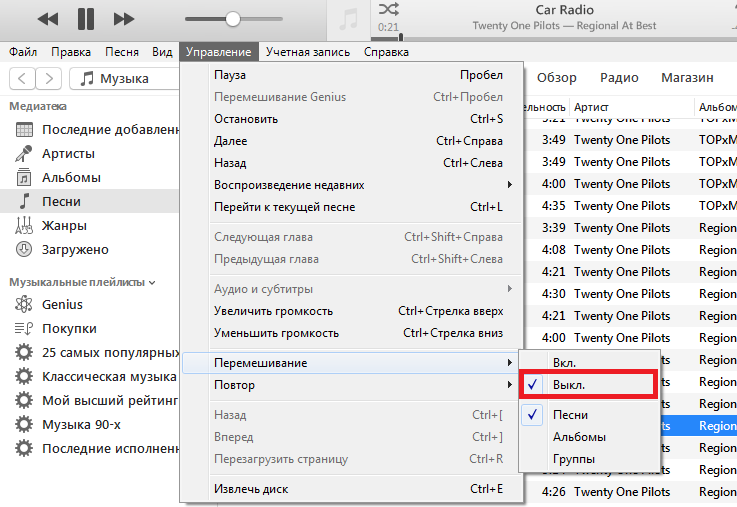

This will completely disable shuffling music in iTunes.
Advertising
Advertising
If you turn off shuffle, but the songs are allIf they continue to play in random order, you need to turn on shuffling, then turn on the music and then turn off shuffling again. This should solve the problem. This likely depends on the version of iTunes, but some users have reported that their shuffle turns on and off on its own, or doesn't turn off at all, even though the icon is not active. Of course, there is also the possibility that people simply do not understand how the function works and accidentally click on the shuffle icon. This is another way to control it, which we will talk about later.
How to disable shuffle using the function icon
The second way is to control the shuffle in iTunes using the quick switch. It looks the same as in the iPhone and iPad.
- Open iTunes and turn on any song.
- At the top of the program, find the plate that shows the name of the artist, the name and duration of the song. There will also be an icon for mixing songs. Press it so that it goes into an off state.
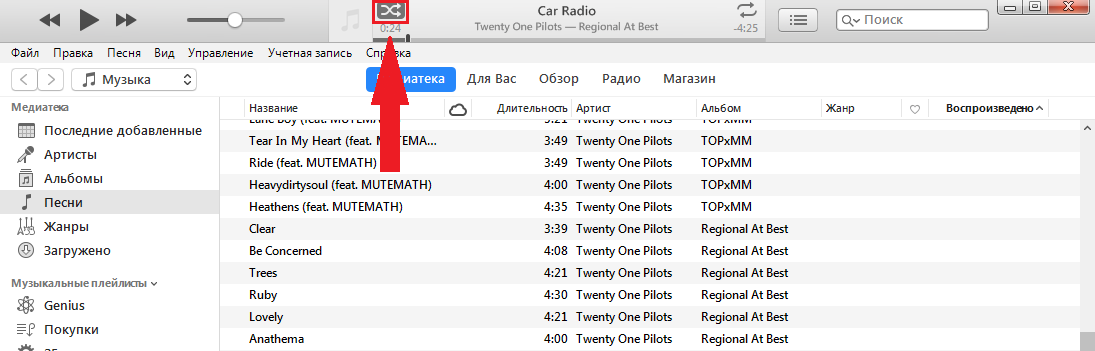

The shuffle icon looks like two intersecting arrows.
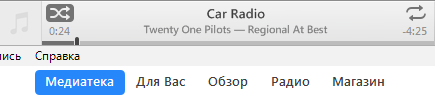
If shuffle is enabled, the icon will look like this:

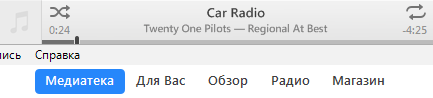
If the function is disabled, the icon looks like this:

Some people turn off shuffling becausebecause they want to listen to all the songs in the playlist, and some because they want to listen to a particular album. This is all very simple, but many users still do not understand how shuffling works, and do not notice how to turn it on and off by accident. Now you know both ways of controlling the function and you can easily enjoy listening to your favorite songs.