One of the most underrated features of the iPhone 8 and iPhone 8 Plus is the True Tone display. It significantly improves perception
As Apple Vice President Phil Schiller said: if you try this feature, you will no longer want to return to the device without it.
Advertising
Advertising
what suchTrue Tone?
For the first time, Apple introduced True Tone technology on the iPad Pro last year. Here is what it is:
True Tone is a technology that adapts the device’s screen to lighting. With it, colors are less dependent on your surroundings.
White is not always the same white. He has his own temperature. When white gives off in blue (like a winter evening), its temperature is low. When white gives off yellow (like a summer evening), its temperature is higher.
Devices without True Tone technology alwaysdisplay white the same. For example, if you read a book on the phone, at home under the lamp the screen will look white, but on the street on a summer day the same screen will be too blue.
True Tone eliminates this difference. With it, the device adapts to the lighting and makes white what it should be. Indoors, outdoors, summer, winter, under a lamp, etc. - white always remains white.
If you have an iPhone 8 or iPhone 8 Plus, True Tone is turned on by default. If you don’t like it, you can turn it off.
How to disableTrue Tone in settings
Step 1:Open settings.
Advertising
Advertising
Step 2:Scroll down to sectionScreen and brightness.
Step 3:Click on the switch next to the lineTrue Tone.
How to disableTrue Tone in control room
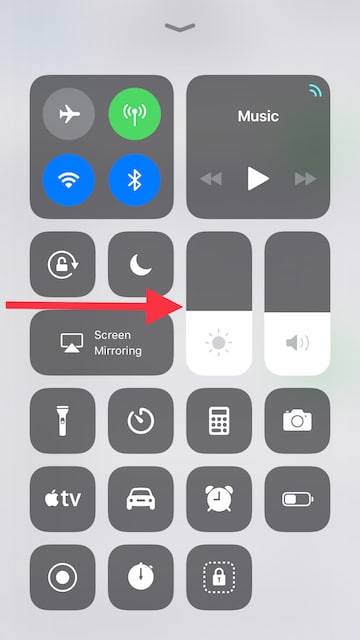
Step 1:Go to the Control Center.
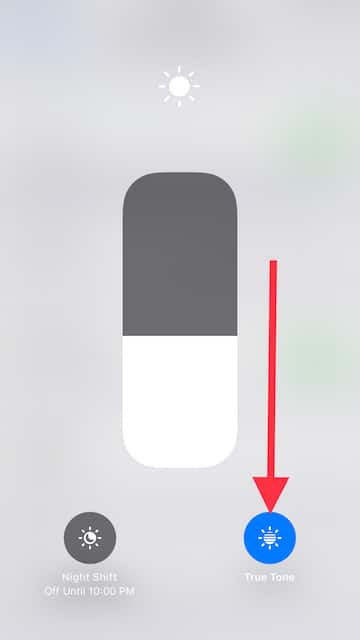
Step 2:Hold the slider to adjust screen brightness.

Step 3:Click on the True Tone button in the lower right corner.