iPhone X includes True Tone technology, which was previously only found on the iPad Pro. The function adjusts the screen colors to suit
You may not like True Tone (like Night Shift). In this case, it can be turned off temporarily or permanently.
How does it workTrue Tone
True Tone is a technology that adapts the device’s screen to lighting. With it, colors are less dependent on your surroundings.
White is not always the same white. He has his own temperature. When white gives off in blue (like a winter evening), its temperature is low. When white gives off yellow (like a summer evening), its temperature is higher.
Devices without True Tone technology alwaysdisplay white the same. For example, if you read a book on the phone, at home under the lamp the screen will look white, but on the street on a summer day the same screen will be too blue.
True Tone eliminates this difference. With it, the device adapts to the lighting and makes white what it should be. Indoors, outdoors, summer, winter, under a lamp, etc. - white always remains white.
DisableTrue Tone in control room
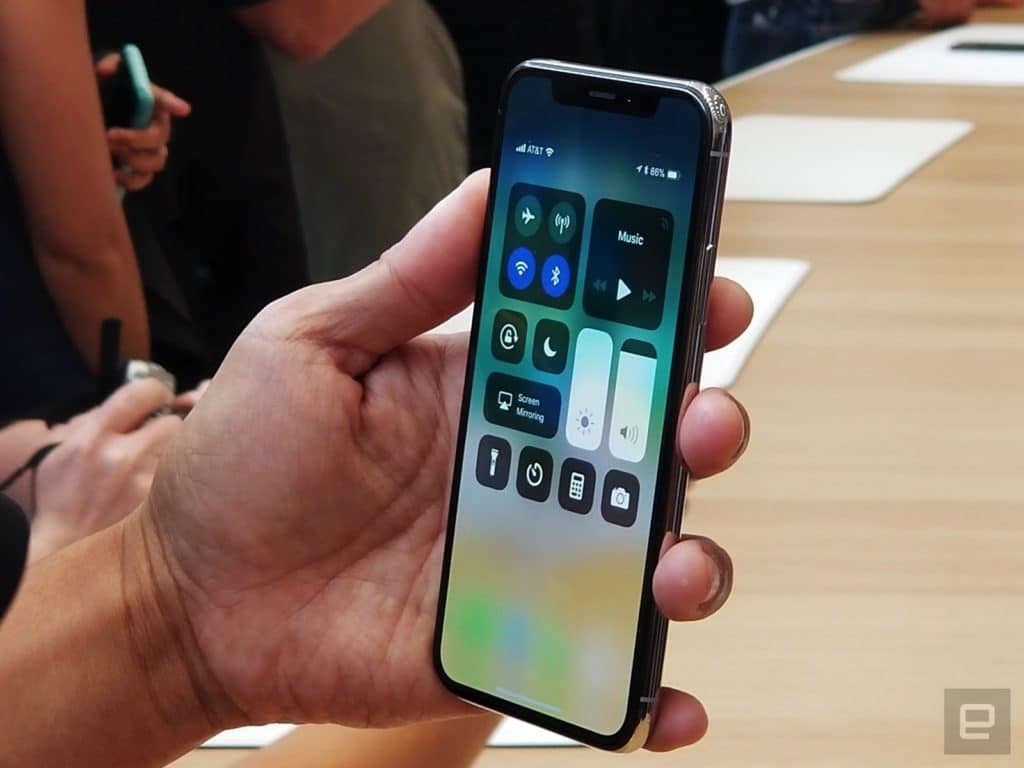
Step1:Open Control Center.

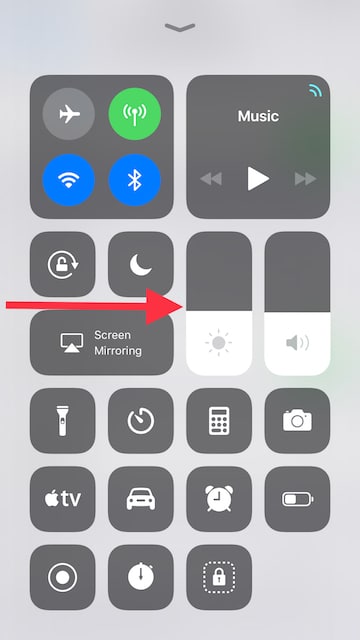
Step 2:Click on the brightness slider using 3D Touch.

Step 3:Click on the iconTure Tone.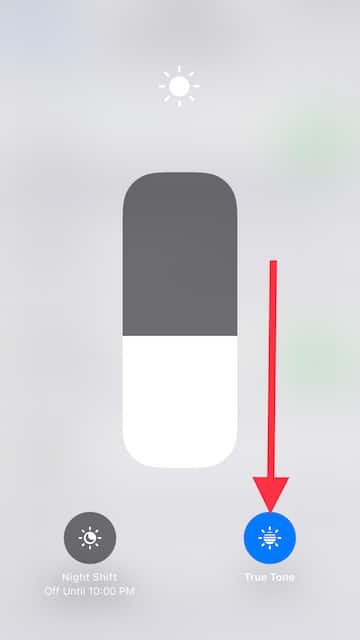

DisconnectTrue Tonecompletely
Step 1:OpenSettingsand go toScreen and brightness.
Step2:Click on the switch next toTrue Tone.
What aboutNight Shift?
Night Shift is a less invisible version of True Tone. It gives the screen a rich yellow color after sunset. This relieves the strain on the eyes if you like climbing on the phone before going to bed. But this feature is certainly not for everyone.