With the release of iPhone XS, iPhone XS Max and iPhone XR, Apple changed the way you can find out the UDID of your
In the past, for this it was enough to connect the device to the Mac and click on the Serial Number several times until the ID is displayed. With new models, this does not work.
However, it is still possible to find out the serial number of the iPhone XS and iPhone XS Max. This is done through the Mac.
How to find out the UDID number through Mac
- Connect your iPhone to Mac.
- Go to the Apple menu and select About This Mac.
- SelectSystem Informationand then tabUSB.
- Select your iPhone and find the itemSerial number.
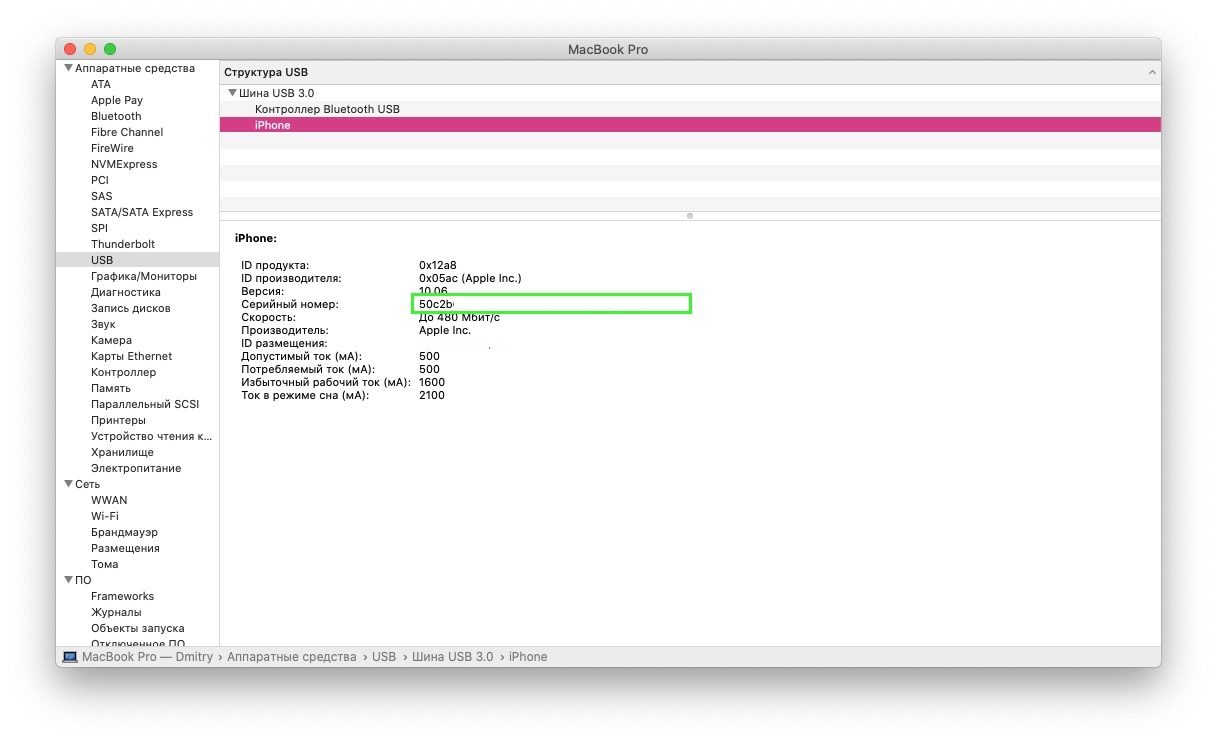

- Copy it. After the 8th character, add “-".
- This is the serial number of your iPhone XS or iPhone XS Max.
How to find out the UDID number new models through Xcode
Now, in order to find out the identifier of your smartphone, you need to use the Xcode program.
one)Launch Xcode.
2)Unlock your iPhone and connect it to your Mac.
3)In Xcode, go toWindow > Devices and simulators, or use the keyboard shortcut Command + Shift + 2.
four)Select a tabDevicesand findIdentifieryour smartphone.
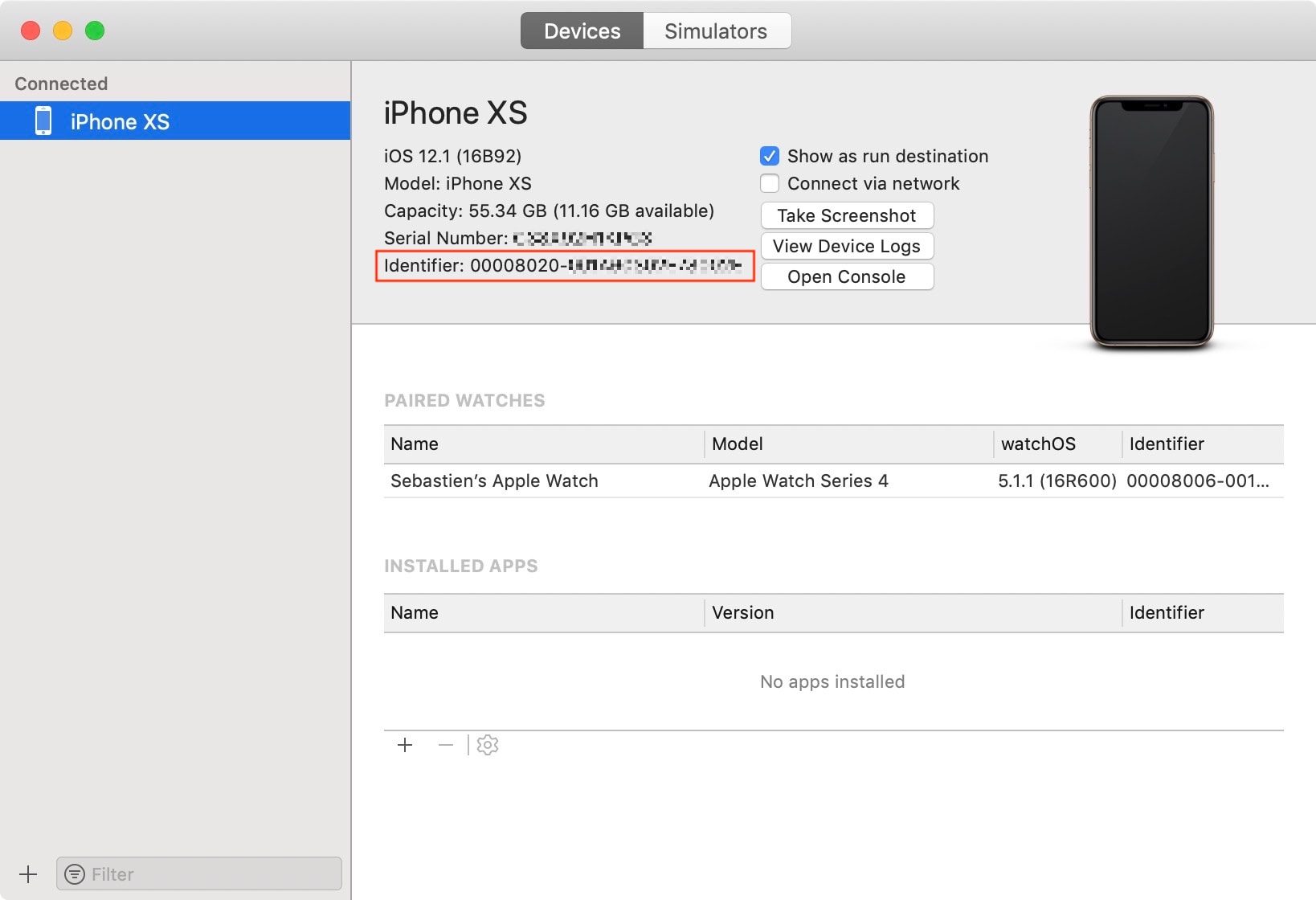

five)The identifier is the UDID. You can select and copy it.
The identifier format of the new models is alsohas changed. Now it consists of other elements. The result looks something like this: 0000CHIP-00ECID. In theory, you can make an identifier for your smartphone by combining different indicators, but through Xcode it is easier to do.
If you have a Windows PC, you can use the iFunBox program, and it will be much easier. IFunBox for Mac does not have serial number information.