Want to reset and clear DNS cache in macOS High Sierra? This needs to be done periodically, especially when the DNS settings are
Most often this is done by web developers and system administrators, but sometimes the DNS cache has to be cleared by ordinary users as well.
Advertising
Advertising
On macOS High Sierra, this can be done withmDNSResponder commands in the Terminal window. Also, the DNS cache is flushed in macOS Sierra with El Capitan, although this process has changed many times over the history of Mac OS and Mac OS X.
How to clear cache DNS at MacOS High Sierra
Note that flushing the DNS cache will disrupt any activity on the Internet.
1. Open the Terminal program in the / Programs / Utilities folder.
Advertising
Advertising


2. In the window, enter the following command:
sudo killall -HUP mDNSResponder; sleep 2; echo macOS DNS Cache Reset | say
3. Press the Return (Enter) key and enter the administrator password. Then press the same key again.
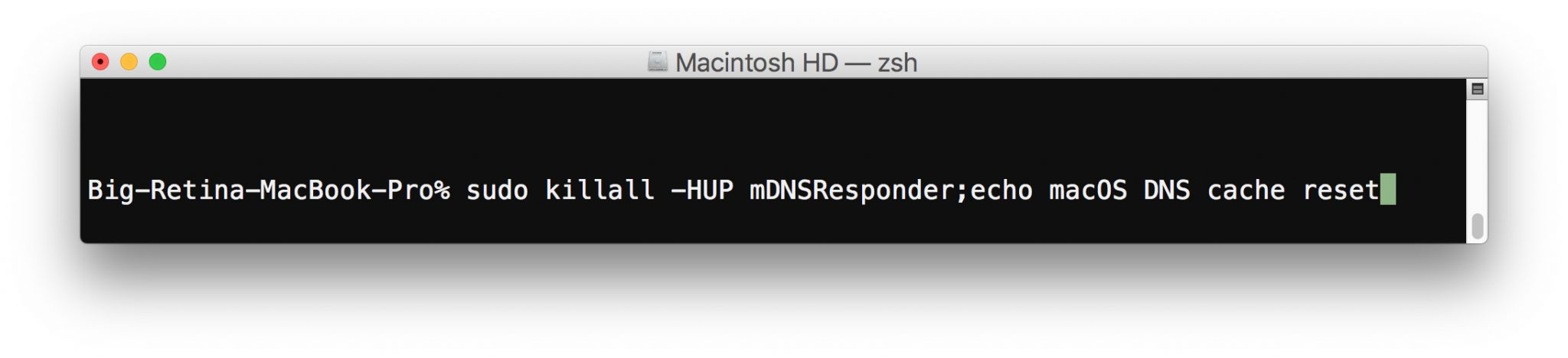

4. Wait until the message “DNS cache is cleared” appears. This means that everything worked out.
5. Close Terminal.
You may need to restart some internet-connected programs to apply the changes, but most browsers are simple enough to update.
If this method does not work, you can try the following command:
sudo killall -HUP mDNSResponder && echo macOS DNS Cache Reset
This method works on macOS High Sierra, which is a version of Mac OS 10.13.x.