If you've upgraded to a new iPhone 11 or iPhone 11 Pro from an iPhone 8, iPhone 7 and older, then you'll have to get used to the new system
Advertising
Before we talk about the new method, we will figure out whether it is worthwhile to forcefully close applications on our smartphone.
Is it worth it to force close applications on the iPhone?
Disputes on this issue have been going on for many years and notgoing to stop. According to Apple itself, iPhone applications do not need to be closed forcibly, because even more resources will be spent on their launch than in the background. However, from time to time it is worth using forced closure when the application freezes or consumes too much battery power.
We do not recommend constantly closing applications. You can close only those that you rarely use, otherwise they will simply clog the application switch. You will not notice any performance improvements, but at least you will not be confused among many unnecessary applications.
Advertising
Advertising
How to close applications on iPhone 11 and iPhone 11 Pro with iOS 13
To get started, open the app switcher on your iPhone 11 or iPhone 11 Pro. To do this, swipe up from the bottom of the screen, but stop your finger in the middle of the screen.
The action is similar to the “Home” gesture, but the difference is that in this case you need to stop your finger in the middle of the screen and hold it for a short while.
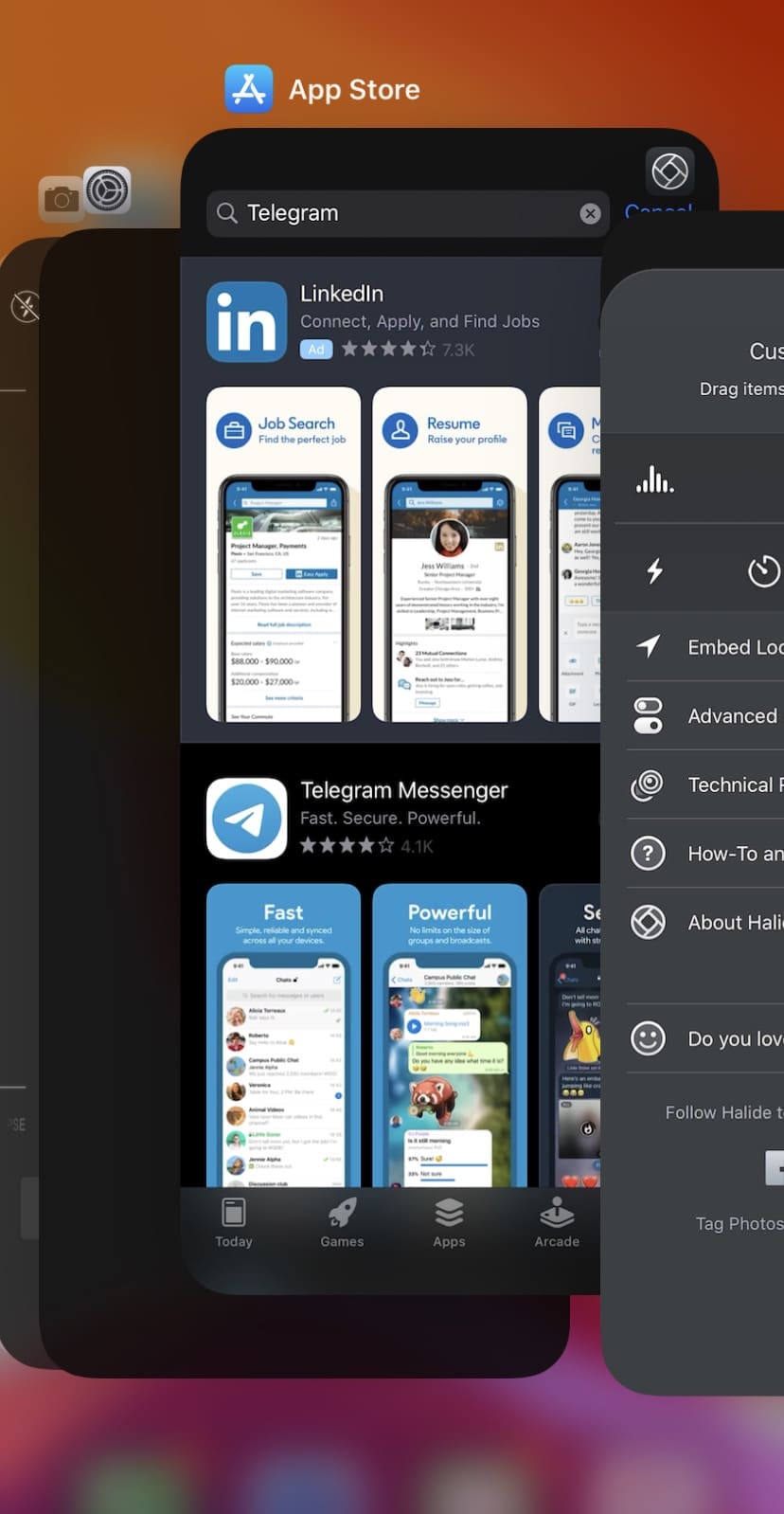

To force close the application, simply swipe its card up.
You can swipe three cards at once using three fingers.
Recall that constantly close applications on the iPhone is not worth it. Do this only with applications that you rarely use.