The day after Apple released the first public beta of iOS 12, the company also released
MacOS Mojave has many new features, includingdark mode, Promotions program, dynamic wallpapers, updated Mac App Store, etc. Moreover, the Mojave version is the first major update in many years. There were some changes in previous versions of the system, but there have never been so many.
If you’re not ready to wait for the final release of Mojave, you can sign up for the beta program and download the new version now.
Keep in mind that this is still beta, so there will be bugs and problems in it. In addition, not all developers have added support for the new version in their programs, so that they may not work properly.
If this does not stop you, go to the instructions below.
Supported ModelsMac
Before you begin, make sure your Mac supports macOS Mojave.
- Mac Pro late 2013 (as well as some mid-2010 and 2012 models)
- Mac mini late 2012 and newer
- iMac late 2012 and newer
- iMac Pro
- MacBook Beginning of 2015 and Newer
- MacBook Air Mid 2012 and newer
- MacBook Pro Mid 2012 and newer
Installing the public beta of macOS MojaveIt will not affect your data in any way, but we still recommend that you keep a backup copy in case something goes wrong. A copy will also be useful if you decide to restore to High Sierra.
Sign up for a beta program
Step 1: Go to the siteApple betaand register for the program. You just need to sign in to your Apple ID.


Step 2: Go to the macOS tab and selectEnroll Your Devicesin the upper right corner.
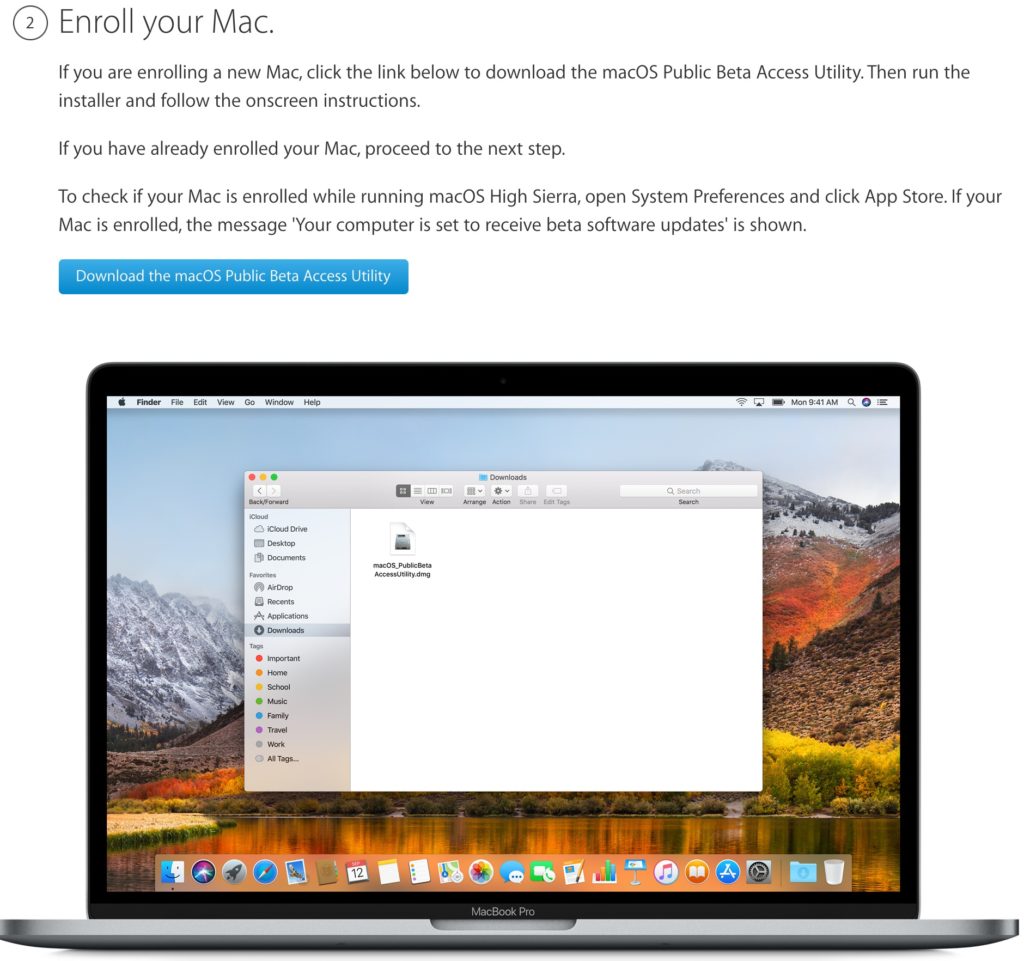
Step 3:Download the macOS Public Beta Access Utility file by clickingDownload the macOS Public Beta Access Utility.

Download and install the betamacOS Mojave
Step 1: Open the macOS Public Beta Utility file and run the installation.
Step 2: Once the installation is complete, macOS Mojave will open in the Mac App Store. Here you can download the public beta of macOS Mojave by clicking the download button.
Public beta takes up almost 5GB of memory, soTo download it, you need a stable Wi-Fi connection. After downloading, the macOS Mojave installer will open automatically. Further you only need to follow the instructions on the screen.
Remember to backup your Macusing Time Machine. After the public beta version of Mojave is installed on your computer, you will receive subsequent beta updates automatically.