If you often need to quickly open the desktop on a Mac, the best and fastest way to do this is with the combination
Using macOS keyboard shortcuts, you can quickly access files and other contents of the desktop, or simply instantly hide what you had open.
Mac has several ways to quickly showdesktop, including a gesture for the trackpad. We will tell you how to quickly open the desktop with a key combination and two other ways. These methods work on all modern versions of Mac OS with support for Mission Control or Expose.
How to minimize all windows on Mac
The first combination: Command + F3
The first combination with which you can quickly open the desktop:Command(Cmd) +F3. Hold down the Command key and F3 key at the same time.
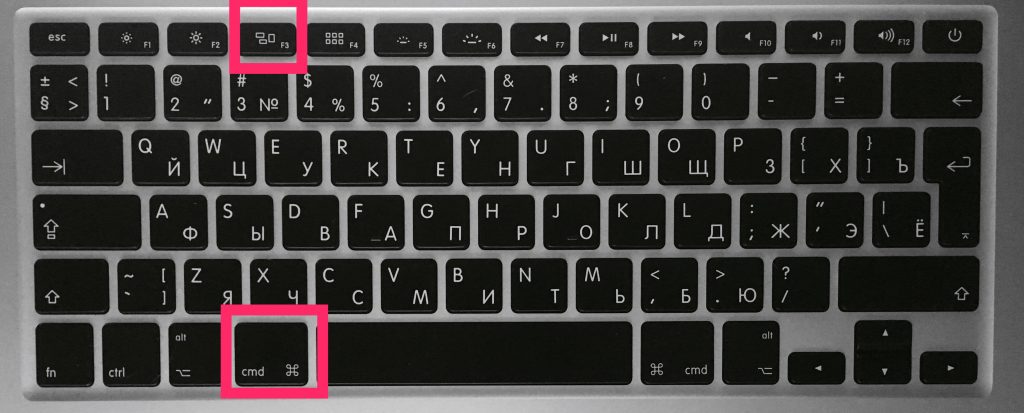

This instantly activates the "show desktop" function, and all open windows will be minimized.
To return to programs, just hold Command + F3 again. Also, all windows will return if you open a new program.
The GIF image below shows how this action looks.
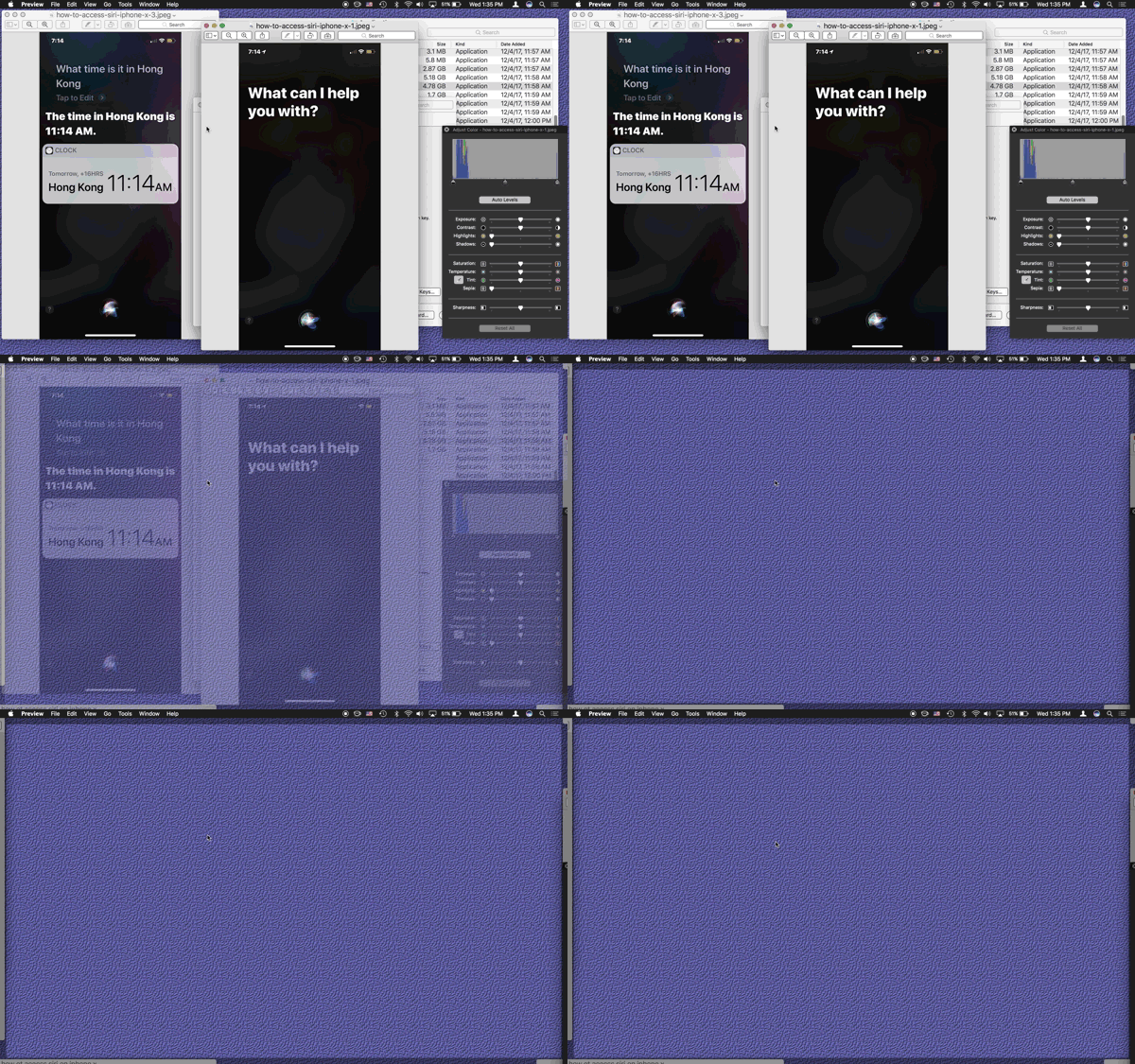
 How to minimize all windows in mac os
The second combination: fn + F11
Another way is a combinationFunction+F11. They will also need to be clamped at the same time.
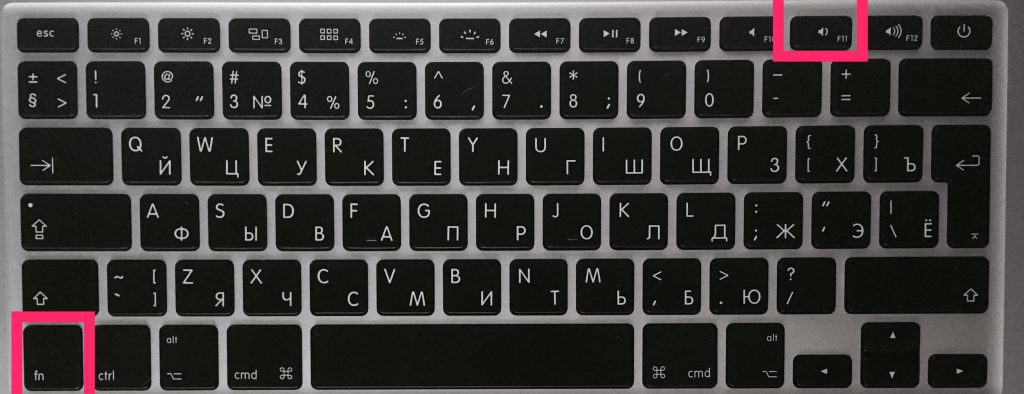

The second combination works on the same principle as the previous one.
To hide the desktop and return to programs, press Function + F11 again or open a new window.
What if the combinations do not work?
If for some reason the keyboard shortcuts on your Mac do not work, try the following:
- Go to the Apple menu and select System Preferences.
- Select Mission Control.
- In the Keyboard and Mouse Keyboard Shortcuts section, find Show Desktop and select F. in the menu next to it.
- Try to simultaneously hold down the F11 + function keys, the desktop should open.
Combinations should work even if the desktop is turned off, some icons are hidden, etc., but you just see your wallpaper without icons.
Using Active Corners
Step 1:From the menu bar, selectApple> System Settings > Mission Control.
Step 2:In the window that opens, selectActive anglesin the lower left corner of the screen.
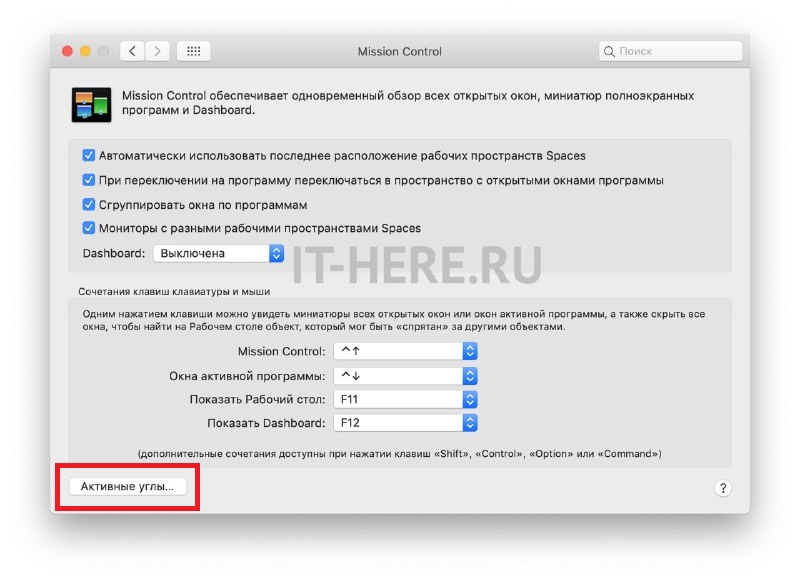

Step 3: Select a corner that will open the desktop when hovered over, and then from the menu next to that corner, selectDesktop.
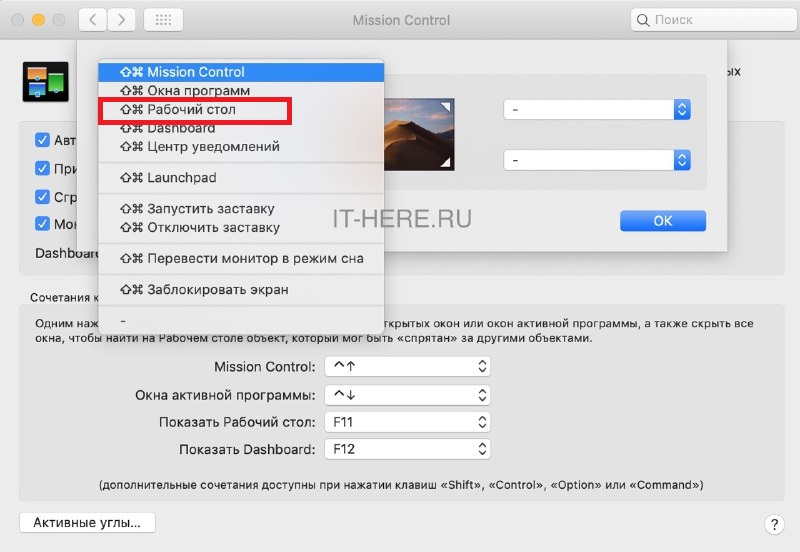

The settings panel should look like this:
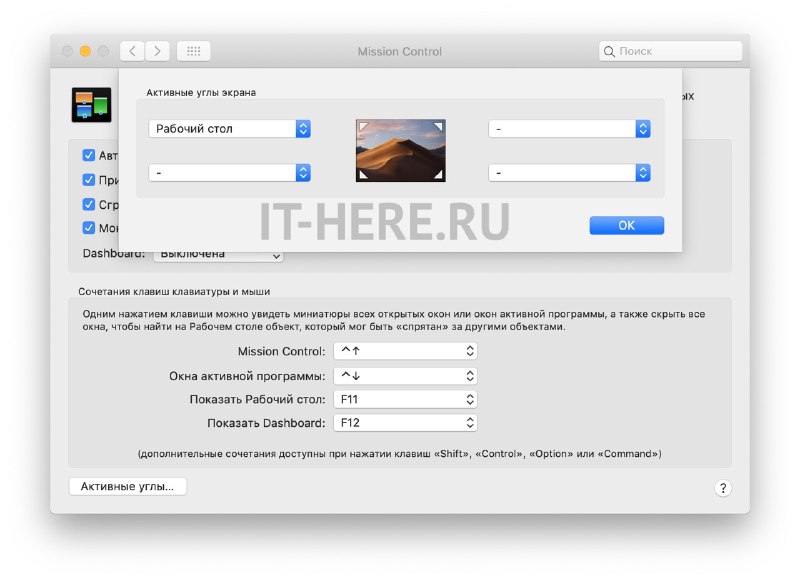

Step 4: Now click OK and close the settings.
Now you can simply hover over the top left (or other corner of the screen) to minimize active windows and show the desktop.
Using trackpad
If you have a MacBook or have an external trackpad, then you can quickly open the desktop in another convenient way.
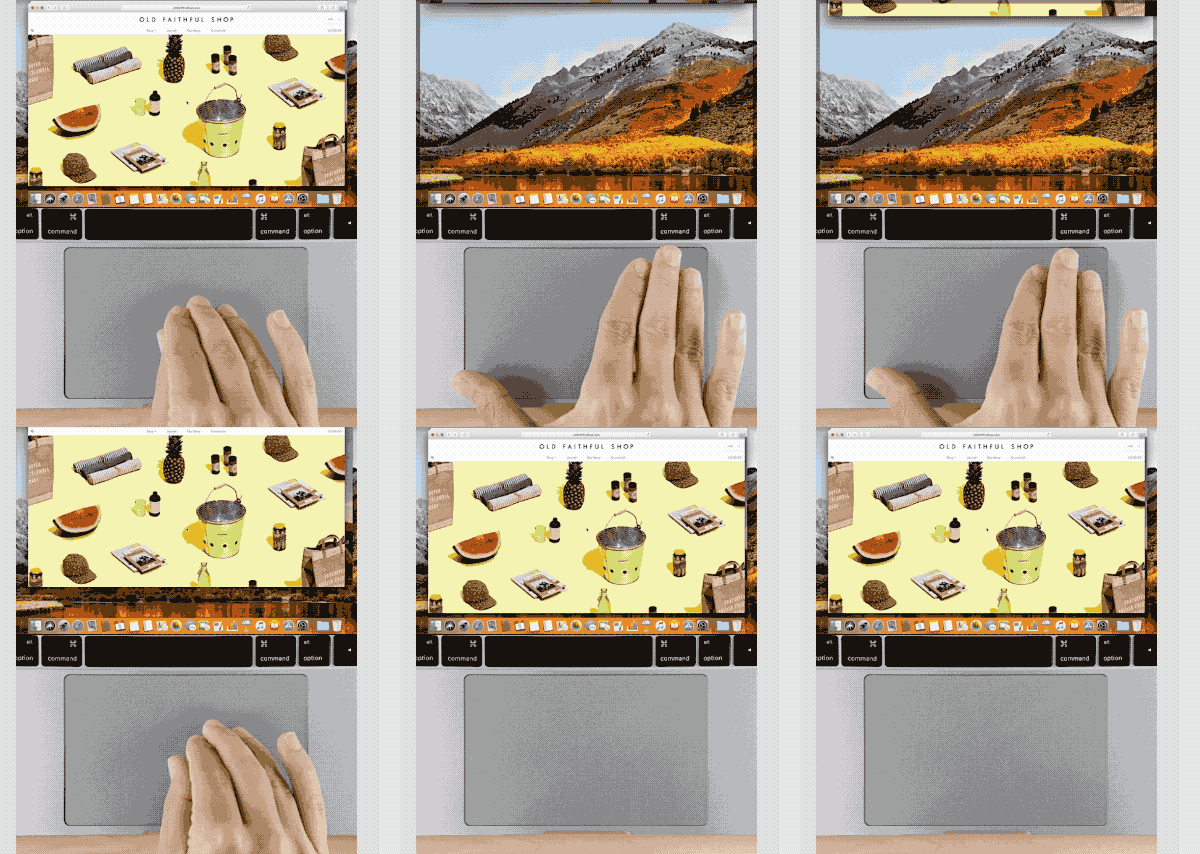
Simply place four fingers in the center of the trackpad, then spread one – in the bottom corner, and the other three – to the top as shown below:

Now you know about four ways to quickly minimize all windows and show the desktop of your Mac. We hope you find this useful in your work!