In iOS 11 (and earlier versions too), Siri analyzes app usage data, search history,
How to remove individual applications from search results
If you are generally satisfied with the recommendations, but youIf you just don't want to be offered a specific program, you can disable this option. To do this, in the settings, click on “Siri and Search”. This will open a list of apps that Siri can suggest when searching. Tap the app you want to disable and move the slider to OFF.
You can disable absolutely any application, and it will immediately stop appearing when searching. At the same time, Siri will continue to learn your preferences using approved programs.
How to completely disable Siri recommendations
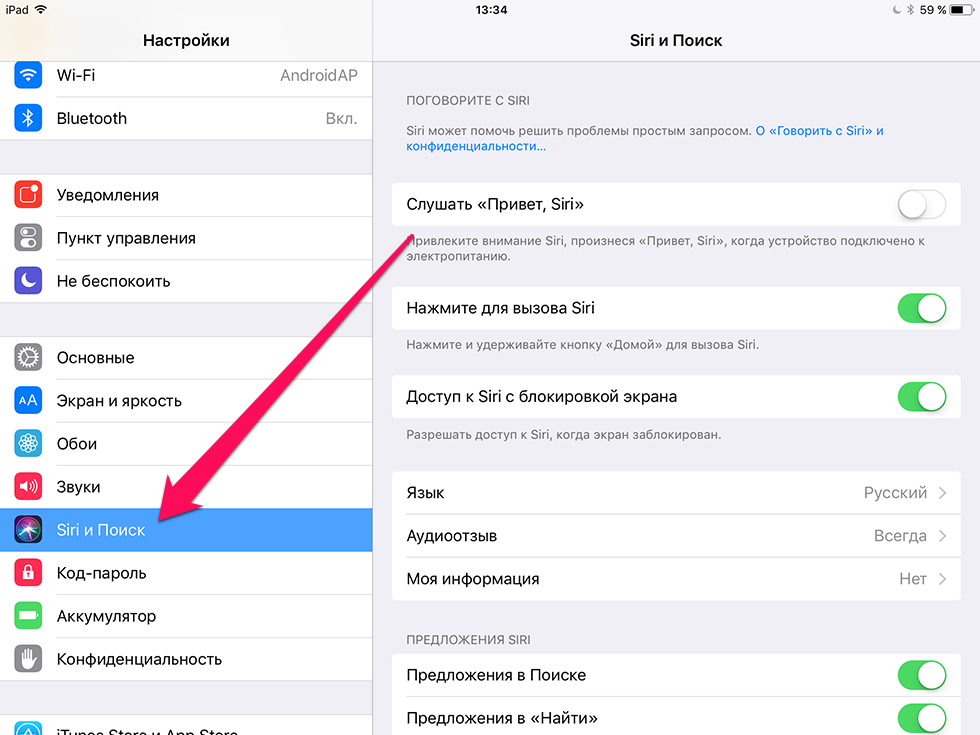

If you want to avoid advice completelyvirtual assistant, the predictive search function can be disabled. To do this, go back to “Siri and Search”, find the “Suggestions in Search” sliders. and “Offers in “Find” and turn them off.
After that you will not receivepersonalized recommendations during the search. In addition, your data will not be transferred to the Apple server. Note that if you skipped the previous step, then relevant applications from your device will still appear in the search results.
How to prevent Siri from sending location to Apple
In some cases, it is sent to the Apple servernot only information related to your preferences, but also geolocation data. However, you can always prevent Siri from doing this. In Settings, open “Privacy” > “Location Services” > “System Services” and move the slider to “Location-Based Suggestions” to OFF state.
In general, Siri's recommendations are oftenuseful, but it's still nice to be able to disable options you don't use – especially considering that this affects personal data, albeit transmitted in encrypted form.