Have you decided that you don't like the macOS Catalina 10.15 beta? Then you can return to the last public or
Advertising
Advertising
To do this, you need a backup of Time Machine, saved before installing the beta version of MacOS Catalina. The process is very simple, but below we will talk about it in more detail.
Note that in the process all data will be deletedfrom your Mac, so without a backup, you shouldn’t use the method. We also recommend, just in case, manually save your important data created already in macOS Catalina. Make sure you have a copy of Time Machine made before installing MacOS Catalina. Otherwise, do not use this method.
How to roll back from macOS Catalina 10.15 beta
- Connect the media with a copy of Time Machine to your Mac.
- Reboot the Mac.
- While loading, hold down the keysCommand+Rto enter the Mac in recovery mode.
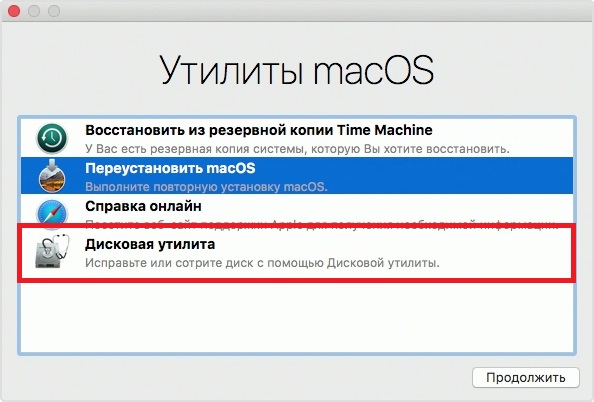
- On the macOS Utilities screen, selectDisk utility.

Advertising
Advertising
- In Disk Utility, select the drive where you installed the macOS Catalina beta and clickErase.
- Name the drive you want to erase, and then select the file system format APFS or HFS + (for Sierra and older).
- ClickEraseto format Mac. This will delete all data from it. -
- When the process is complete, close Disk Utility.
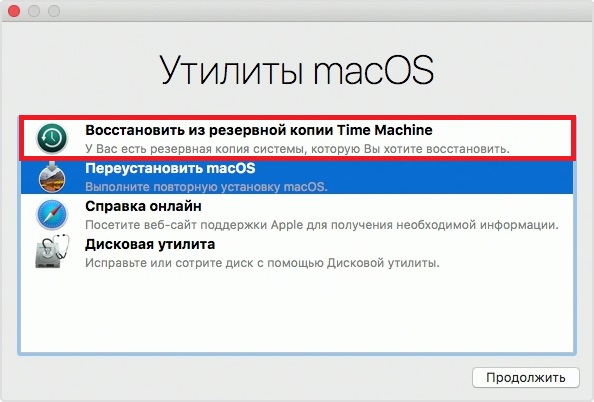
- On the MacOS Utilities screen, selectRestore from backupTime Machine.

- Select the media with a copy of Time Machine as the source and click Continue.
- Now select the most recent copy you want to recover from.
- Select the drive you want to restore the system to. It must be the same drive that you formatted earlier.
The recovery process will take some time independing on the speed of the media and your Mac. Let the process end. After that, the computer will automatically reboot with the version of the system to which you rolled back.
The method works regardless of how you installed MacOS Catalina - through the installer, from a flash drive or something else. It is only important to have the right copy of Time Machine.