Sharing files across platforms sounds like a difficult task, but it really isn't. Today we will tell you
To do this, you must have versions installedWindows 8.1 – 10 and OS X Yosemite – High Sierra. The instructions should work with both previous and new versions, but the process may be slightly different.
How to set up PC file and folder sharing with Windows onMac
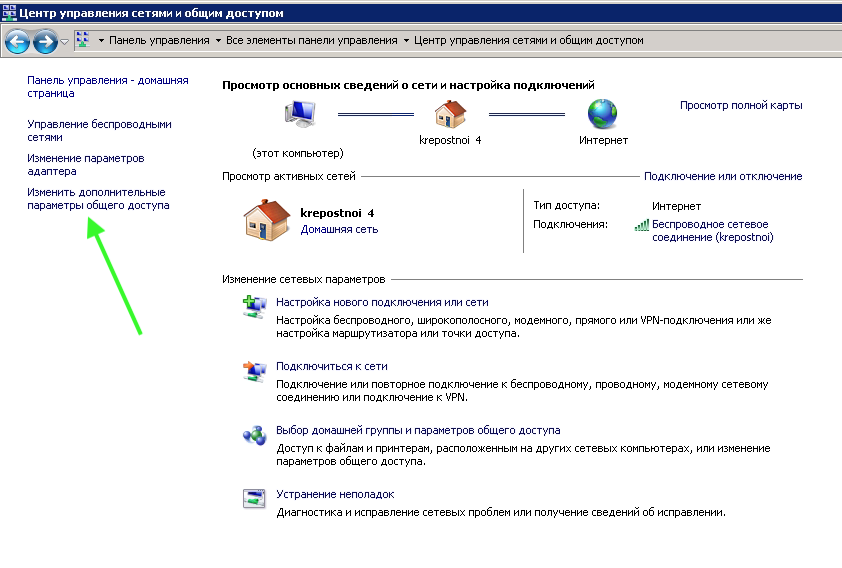
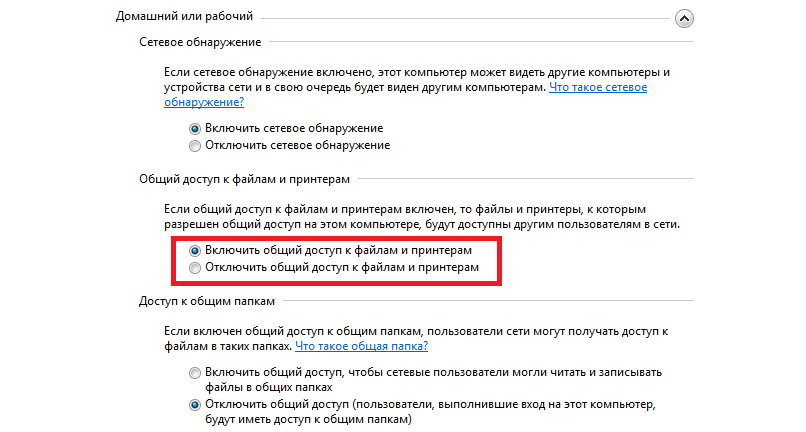
Everything is very simple, but first you need to enable the generalaccess. To do this, open the Control Panel, go to Network, and then click at the top of the "Network and Sharing Center" window. After that, select additional options and enable File and Printer Sharing for your network.


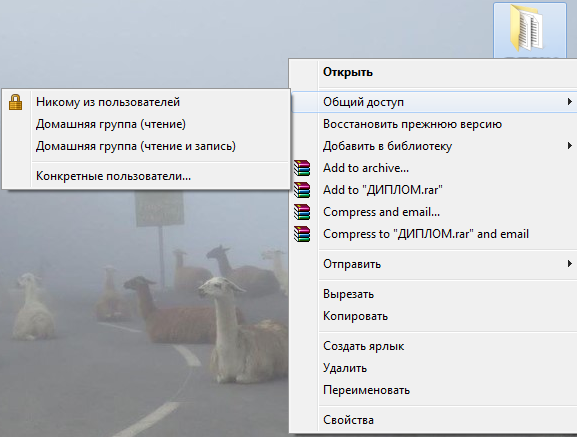
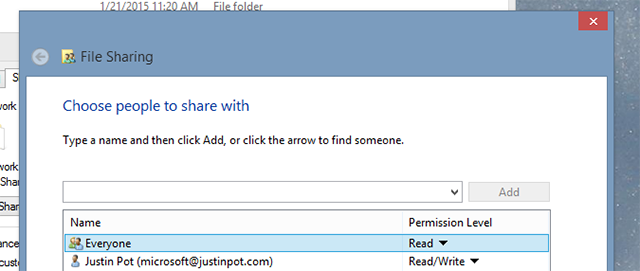
The hardest part is behind. Now on your Windows PC, right-click on the folder you want to share, and select Share. Select the user group you want to share files with.


We're done here, now grab your Mac. Open Finder, and in the menu on the left, go to the “Network” section.
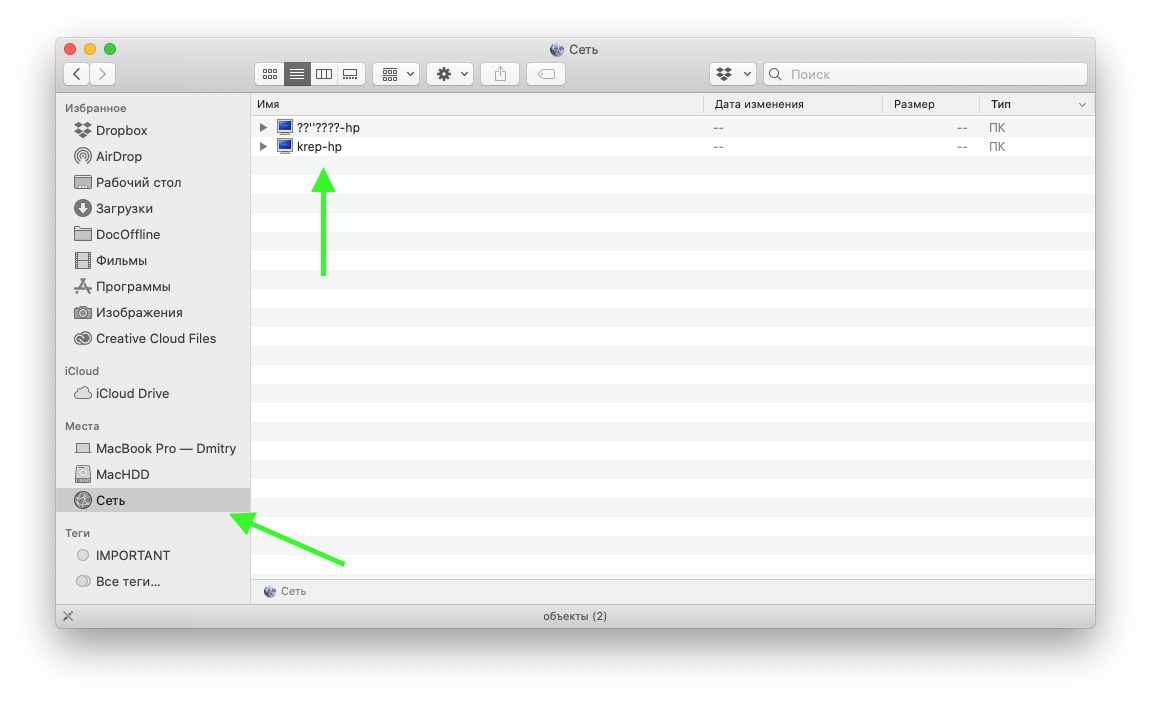

Here, double-click on the computer whose files you want to share. Then in the top right corner, click “Connect as…”


 Click “Connect”


In the next step, enter the Windows username and password, or if you have activated the Guest user on a Windows computer, select it.
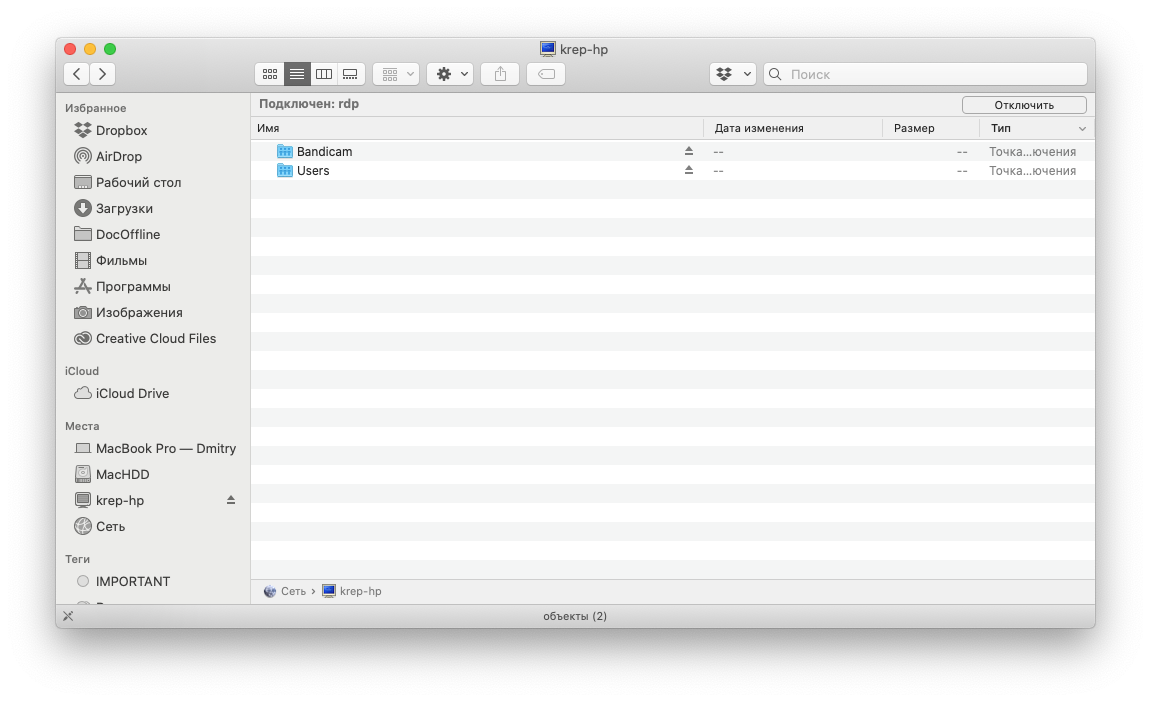

After this, you can start using shared files. Next time you will not need to go to the “Network” section; the network computer has now appeared in the left menu as a separate directory.
You set up file sharing on a Windows PC and opened it on Mac. Now let's try the opposite.
How to share files with Mac on pc
On your Mac, open System Preferences and select Sharing.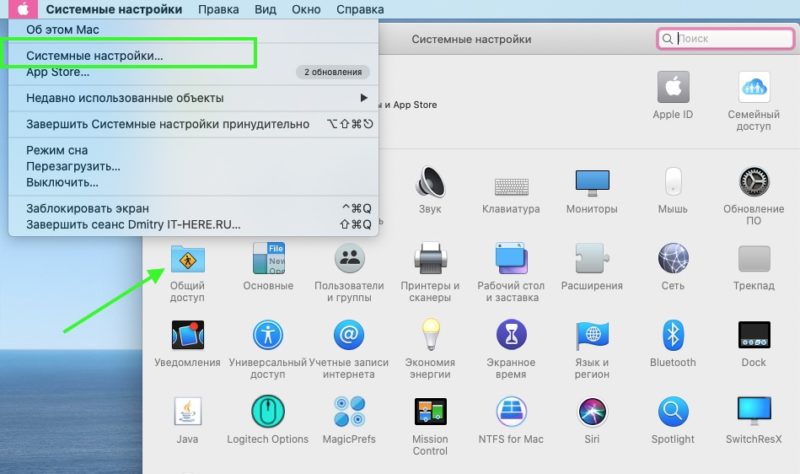

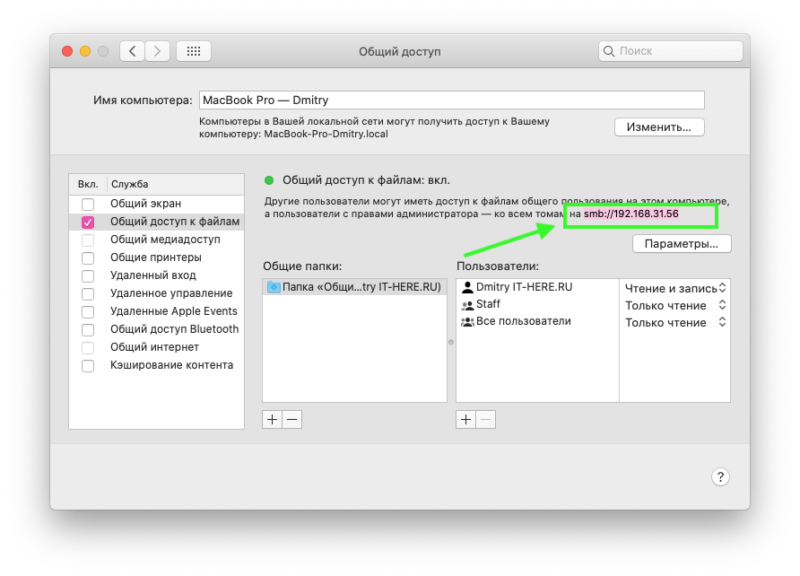

Note the name of the computer at the top of the window and itsIP address, you will need them. Here you can add any folder that you want to share. To do this, under the section “Shared Folders” Click the plus sign and select the required directory.
Click on the checkmark next to “File Sharing” and the function will be activated. Now select Options.
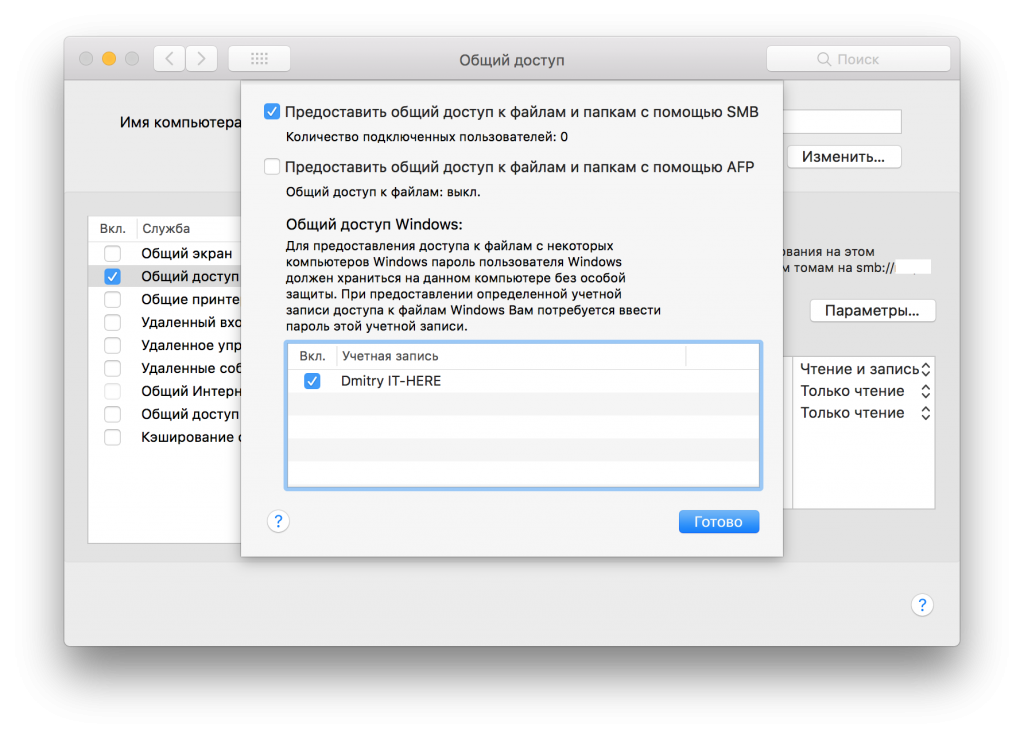

Make sure the first item is enabled –“Share files and folders using SMB”. You also need to enable access for Windows by checking the box next to the account through which you will access shared files, by default this will be your only account, but you can also activate the guest user and connect to the shared folder without entering a password.
Now go to your Windows PC and open My Computer on it. There on the left you should see your Mac.
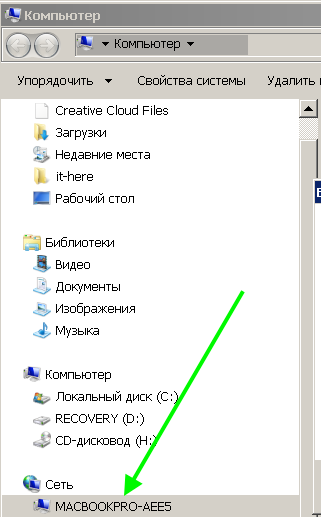

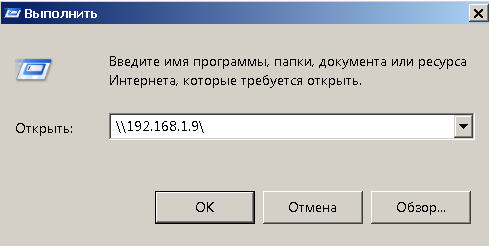
If it is not there, then go to the “Start” menu and type “Run” in the search or press Windows + R on the Windows desktop

- Enter the Mac's IP address in the format “192.168.1.9” or dial “” and you will be asked to select a name for your Mac, click OK.

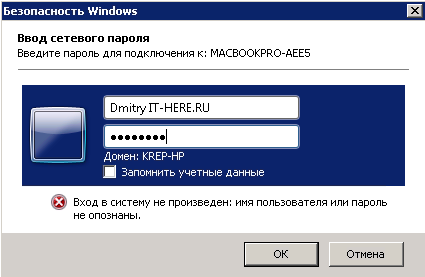
- Enter your macOS user and password, then click OK.

That's all, you have access to files.
Note!If your Windows computer is in a workgroup rather than a domain, you may need to add a backslash – before the username.“”.
That is, you will need to enterUser. If you are logging in as a guest user and getting an authentication error, try enteringGuestinstead ofthe guest. You do not need to enter a password for the guest.
How to share files through third-party software
If you don't want to configure shared files on the system, there are other options. For example, the programDuktoallows you to locally share files between any two computers.
Install it on your Mac and Windows PC and you can quickly send files from one computer to another. In addition to this program, there are many more like this.
Most users preferfile synchronization via BitTorrent. The program allows you to synchronize entire folders on different platforms, and computers do not even have to be connected to the same network.
If you have already set up shared access to Windows and Mac folders, then you can also connect to them from your iPhone through the Files program.