Если на вашем Mac работаете не только вы, но и кто-то из членов семьи, выход из учетной записи поможет
In order not to end the session manually each time, we describe how to set up automatic logout and screen lock with a password after a certain period of inactivity.
Advertising
Advertising
Automatically log out of your Mac account after a predetermined inactivity time
1) In the Dock panel or menu, click onApple icon>System Settings > Protection andsafety.
2) Click on the lock icon at the bottom left and enter your credentials: username and password.
Advertising
Advertising
3) Select a sectionAdditionally.
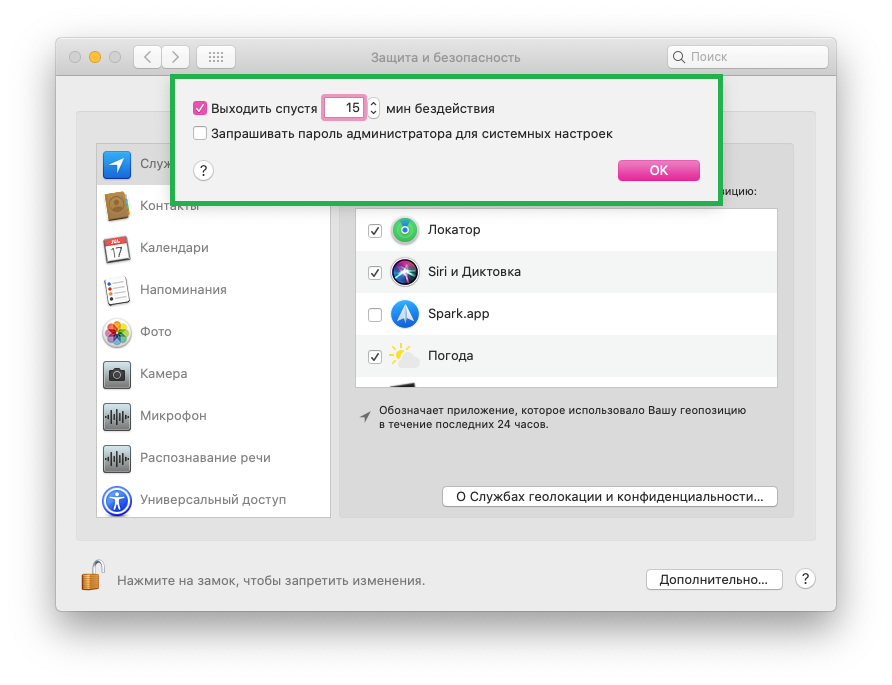
4) In the window that opens, check the box next toTo leave after ... minutes of inactivityand enter the number of minutes in the field.
5) ClickOk.

Mac Screen Lock Password
If you don’t want to completely log out of your account while you’re away, but you still need to protect your data, you can set up an automatic screen lock with a password.
1) In the Dock panel or menu, click onApple icon>System Settings > Protection andsafety.
2) Select a tabMainand unlock settings.
3) Check the box next toRequest password via ... when exiting sleep mode or screen saverand select a time interval from the drop-down list.
Manually Setting Up Your Mac Screen Saver Launch - Three Ways
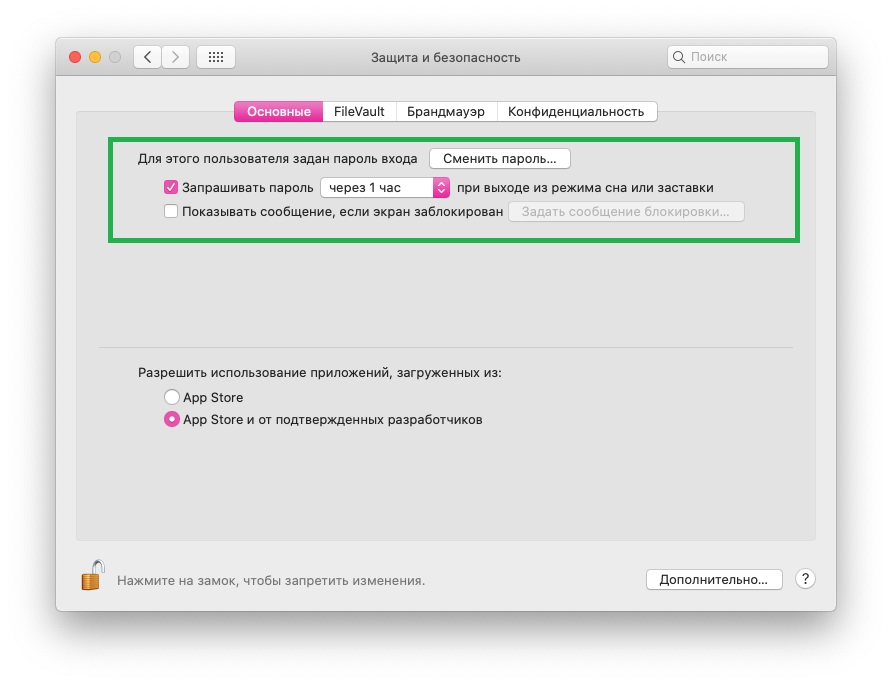

After the set time has elapsed, you will need to enter a password to enter the system.
You can also lock your Mac using a key combination: simultaneously pressCommand+Control+Q.
Be sure to block your Mac if you leave your laptop unattended in a crowded place (even in the office).
Confirm requests and view passwords on a Mac using Apple Watch