Cloudflare, a company famous for its CDN and DDoS protection services, released a new DNS service in the past
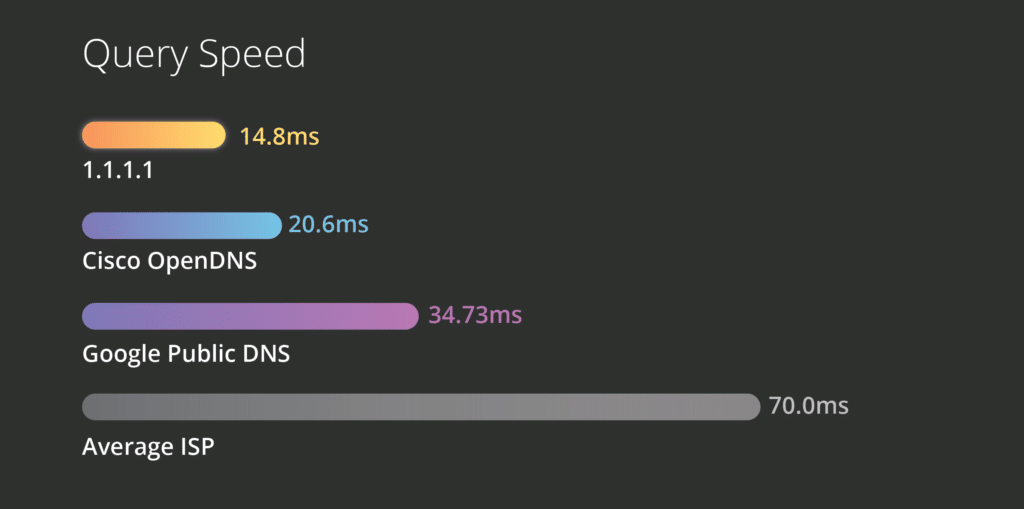
There are many other DNS services, including and a service from Google, but Cloudflare claims that their service is the fastest among competitors. Switching to Cloudflare DNS, you will immediately notice that the Internet has become faster.
Advertising
Advertising
If you do not understand what DNS is, read the explanation below.
Domain Name System – Internet phone book. People access information online through domain names likenytimes.comorespn.com. Web browsers use Internet Protocol (IP). DNS turns domain names into IP addresses so browsers can load resources faster.
If DNS is an Internet phone book, thenDNS Resolvers are those who scroll through them to find the IP address of the site you need. The faster this service works, the faster the program loads. CloudFlare DNS Resolver is as fast as possible, and it has a great advantage over all other similar services.

Advertising
Advertising
As you can see above, Cloudflare DNS is fasterGoogle DNS and OpenDNS by 28 percent. The difference is a few milliseconds, but it will still be noticeable with daily use. Below we will tell you how to use the service on Mac and iPhone / iPad.
How to useCloudflare DNS VmacOS
Step 1: On your iMac or MacBook, go toSystem Settings -> Net. Select the network on the left to which the device is connected and go to the menuAdditionally.
Or you can just openSystem settings and enter in searchDNS.
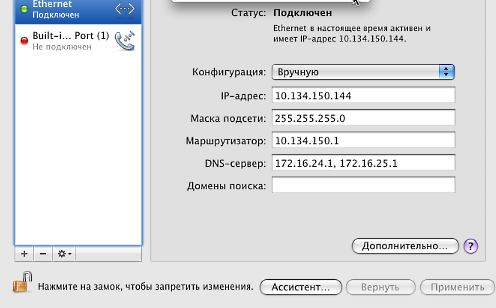

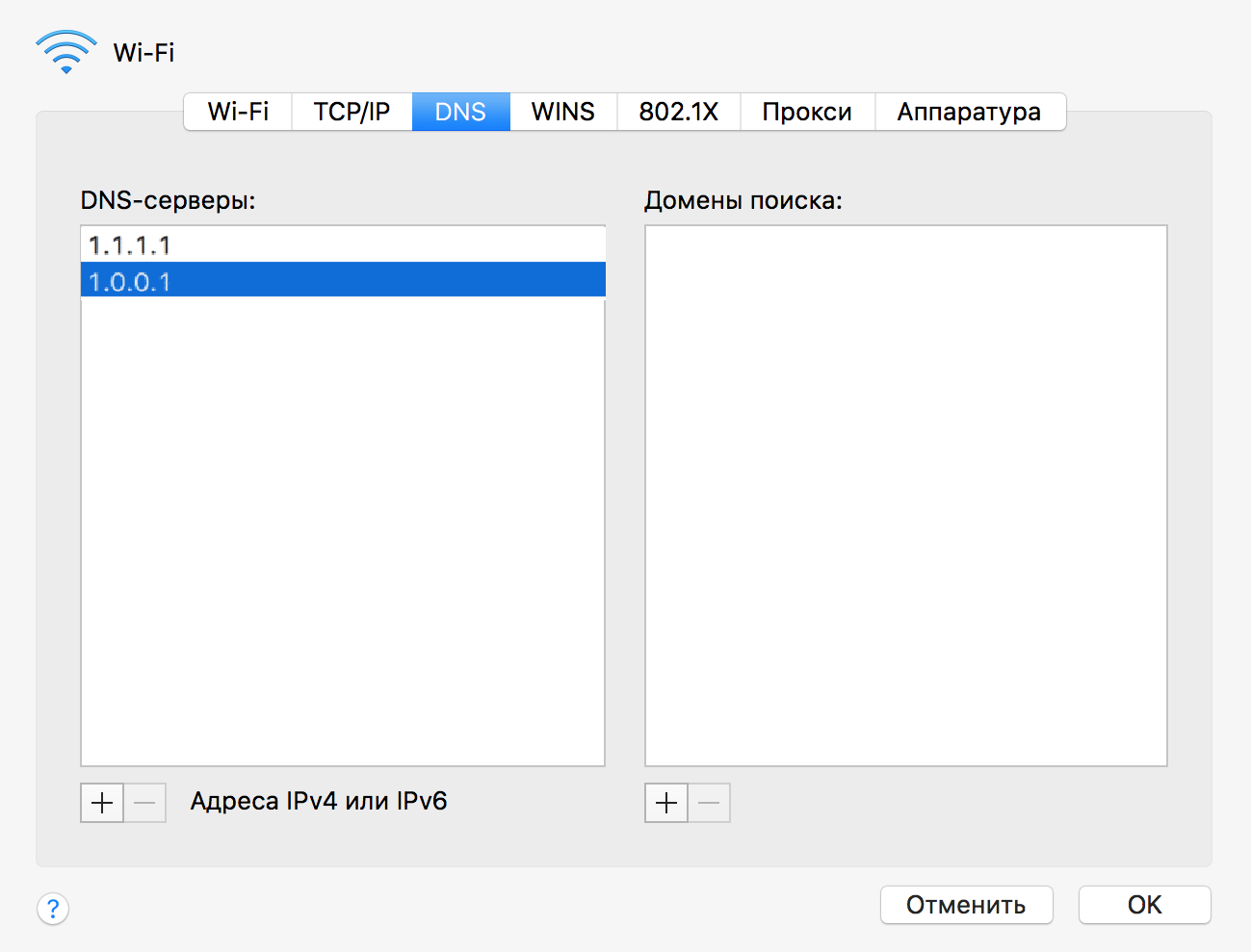
Step 2: Go to the tabDNS. Click the “+” button under the DNS servers and enter the Cloudflare DNS address: 1.1.1.1. Click the “+” icon again and now enter 1.0.0.1.

How to useCloudflare DNS oniphone AndiPad
Step 1: Go toSettings ->Wi–Fiand tap the i icon next to your Wi-Fi network.
Step 2: Select an itemSettingsDNS. Then selectManually and in the DNS Servers section, enter 1.1.1.1 and 1.0.0.1.
Save the changes before exiting. Now your iPhone or iPad will use Cloudflare servers, and the Internet will start to work faster.
In addition, you can configure the Wi-Fi router itself on Cloudflare DNS. After that, each device connected to it will automatically use them.