Several years have passed since the release of the first Apple Watch, and during this time, Apple has managed to bring the process of setting up the watch to
Advertising
Advertising
This means that you can not disconnect your old Apple Watch from the iPhone while setting up new ones. Thus, no data will be lost during the setup process.
If you want to completely switch to the new Apple Watch, you will need to disconnect the old clock from the smartphone and connect the new one. Below we will describe in more detail how all this is done.
How to Disable Old OnesApple Watch Fromiphone
Step 1: Make sure your iPhone and Apple Watch are close to each other.
Advertising
Advertising
Step 2: Open the appApple Watchon iPhone.
Step 3: Select a tabMy watchand then select your watch.
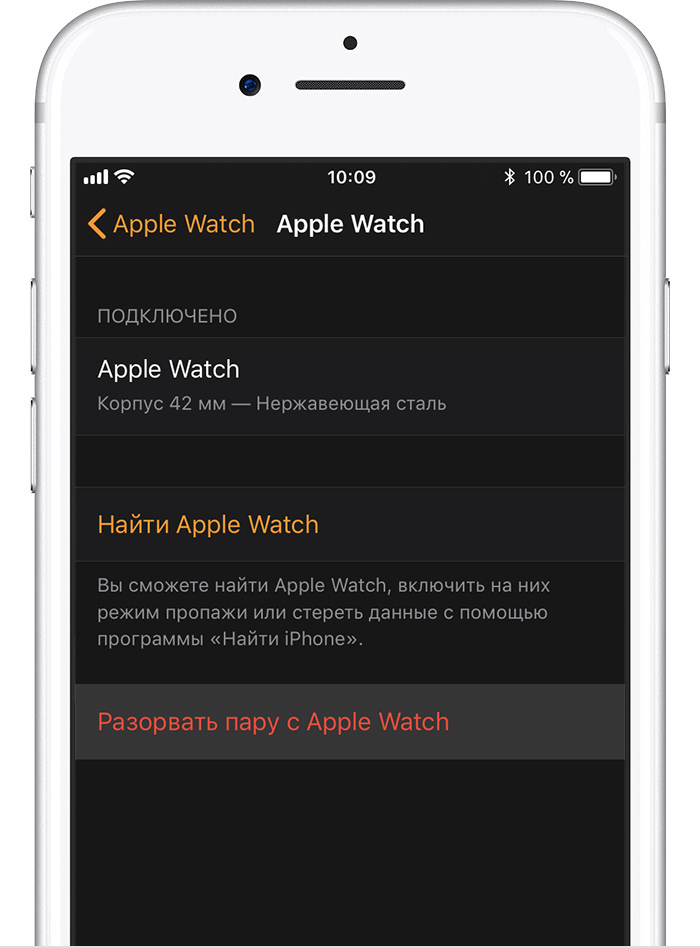
Step 4: Here will be all the Apple Watch connected to your iPhone. If you have more than one watch, click on the “i"Next to those that need to be disabled.
Step 5: ClickBreak the pair withApple Watch.

Advertising
Advertising
Step 6:Now enter your Apple ID password.
Wait for your Apple Watch to reset, erase all content, and reboot.
Advertising
Advertising
how resetApple WatchwithoutiPhone
Step 1: Go to the applicationSettingson Apple Watch.
Step 2: Go toBasic->Reset.
Step 3: SelectErase content and settings.


Step 4: Enter the password if necessary.
Step 5: When the reset is complete, go to the websiteiCloud.comon your computer and turn off Activation Lock. To do this, on the iCloud website, go toSettingsand in the sectionMy devicesselect your Apple Watch. Click the "X» next to the clock to remove it. Then confirm your action.
how tune newApple Watch
Step 1: Hold the side button of the Apple Watch to turn them on. If the watch does not turn on, it must be charged.
Step 2: Hold your iPhone close to your Apple Watch. A window will appear on your iPhone asking you to pair your smartphone with your Apple Watch. ClickStart pairing.
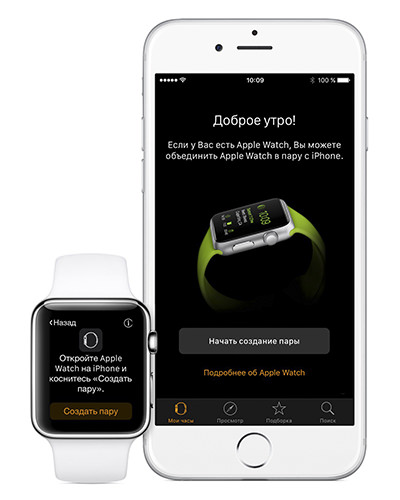

Step 3: An animation will appear on the Apple Watch. Point the camera of your iPhone at the watch so that you can see the animation.


If that doesn't work, clickPair withApple Watch manuallyand use a password.
Step 4: After a while, authentication will complete and the Apple Watch will begin setting up.
Step 5: Now you need to choose whether you want to restore these Apple Watch from a copy or configure them as new.
Step 6: Then accept the terms and conditions and log in to your Apple ID.
Step 7: Customize the basic functions as you wish.
Step 8: Create a password. You can skip this step, but if you intend to use your Apple Watch for Apple Pay or Mac unlock, then the password is worth setting. By default, you need to enter a password of 4 characters, but you can choose a password of as many as 6 characters, which will be more reliable.
Step 9: If you have an Apple Watch with cellular communication, you will see instructions with the process of setting it up.
Step 10: Now it's time for applications. Use your own discretion here. If you chooseInstall all, then all available iOS applications will be installed on your Apple Watch.
You can clickSelect later, and then install only the applications you need manually. Thus, you will not immediately forget the memory of your watch.
Step 11: Now just wait for everyone to syncdata. Above all, keep your iPhone close to the Apple Watch. When the synchronization is complete, you will hear vibration and a sound notification on the Apple Watch.
That's it, your new Apple Watch is ready to use!