When you purchase digital content iniTunes Store, the App Store, or the iBooks Store is only available with
If you wish, you can authorize anynumber of computers. But it also means that any person who has access to an authorized computer gets access to the digital content you purchased. Therefore, it is recommended that you always delete Apple ID account authorization from a computer that you no longer use or when selling the device to another person. When you delete authorization from a computer, the data stored on it is not lost. Access to protected content just stops.
To remove account authorization from a computer using iTunes, follow these steps.
First of all, you need to find out the number of computers associated with your Apple ID account.
Step1:Launch iTunes on your computer.
Step 2:Sign in to your Apple ID if you haven't already.
Step 3:Select menu at the top of the screenAccount->View.

Step 4:Enter your Apple ID account password if prompted.
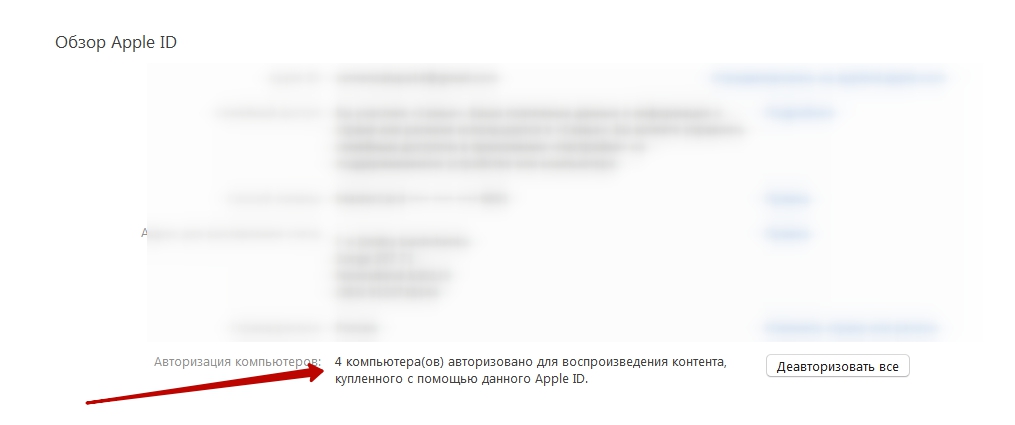
Stepfive:Your account information will appear. Next to the Authorization of computers line, you will see the number of authorized computers with access to the content you purchased.

Delete account from computer
Step 1:Launch iTunes on the computer on which you want to lock the account.
Step 2:Select menu at the top of the screenAccount->Login->Deauthorize this computer.

Step 3:Enter your Apple ID account password if prompted.
Step 4:After, selectDeauthorize.
Delete account from all authorized computers
Remember that you can deauthorize all computers only once a year. This option is useful if you forgot to delete an account from an already sold computer.
Step 1:Launch iTunes on your computer.
Step 2:Sign in to your Apple ID account.
Step 3:Select menu at the top of the screenAccount->View.
Step 4:Enter the password for your Apple ID account if you need to.
Step 5:Your account information will appear.In the information section of your Apple ID account, select the “Deauthorize All” button. This button appears only if you have authorized at least two computers.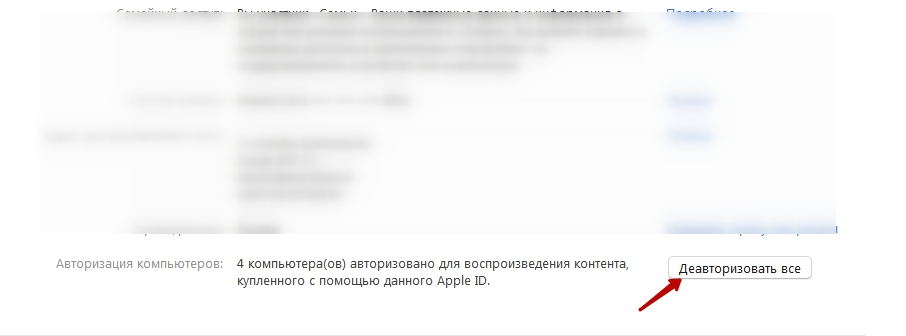

Step 6:Now all authorized computers will lose access to your account and will thus be deauthorized.
After removing authorization from the computerThe data stored on it is not lost. Access to protected content is simply stopped from this computer. If you need to authorize your computer a second time, simply launch iTunes and go to the Account menu -> Authorization -> and select Authorize this computer.