At this point, we know that the Apple Watch has quite a few apps that allow you to expand

Kelly pangburndeveloped a really useful application calledBattery watcherwhich works exactly as you'd expect:Quickly and easily view your iPhone battery life on your Apple Watch. Here's a quick guide on how to view iPhone battery life on Apple Watch:
- Download and install the Battery Watcher app(App Store link to iTunes). Of course, there are other applications with the same functionality, but I prefer Battery Watcher as it is quite easy to use and does not have unnecessary settings.
- Launch the Battery Watch app on your Apple Watch. Share the Apple Watch app on your iPhone, scroll down a bit and find BW and tap on it. Make sure the toggle switch is turned on“Show App on Apple Watch”and for quick access to battery level information, turn on“Show in Glances”.
- Install the Battery Watcher app.Open the app on your iPhone and check its settings. As mentioned, this app is very easy to set up, so there shouldn't be any issues here. You can configure hiding or displaying information: while waiting, using the Internet and during a call.
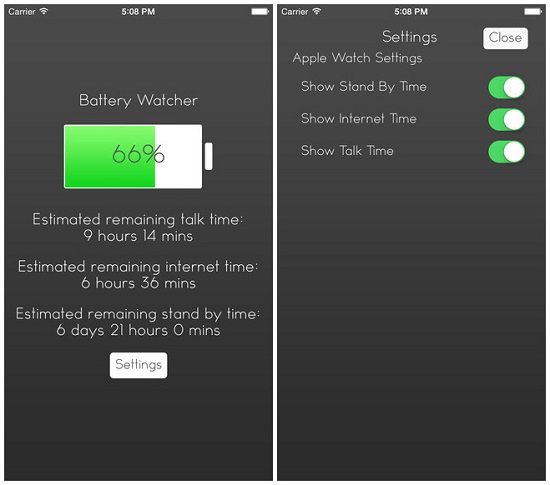

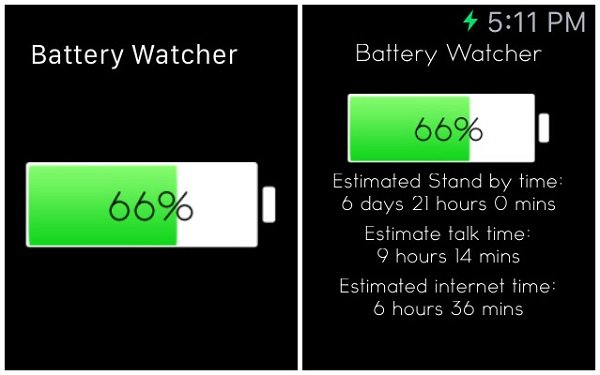
- Now you can view the battery charge leveliPhone on the watch. Launch the BW app to view your battery percentage and other useful information. Tilt your Apple Watch wrist toward you to check the battery level. Please note that only the battery percentage will be displayed.

Hopefully Apple will add this to Watch OS in the future. But for now, you can use this method to view iPhone battery life on Apple Watch.