If you've ever tried to burn .img images to an SD card on Mac, then you know how to do it with
We will talk about how to record images in.img format, but with Etcher you can do the same with .img, .iso, .dmg, .zip, .dsk, .etch, .bin, .bz2, .gz, .hddimg, .raw, .rpi formats -sdimg, sdcard and xz.
The SD card will then continue to work properly.
How to record.img files onSDcard
- DownloadEtcher is freefrom the developer's website.
- Install and run the program
- Click “Select Image” to select images.
- Click “Select Drive” to select the SD card.
- Click “Flash” to start recording.
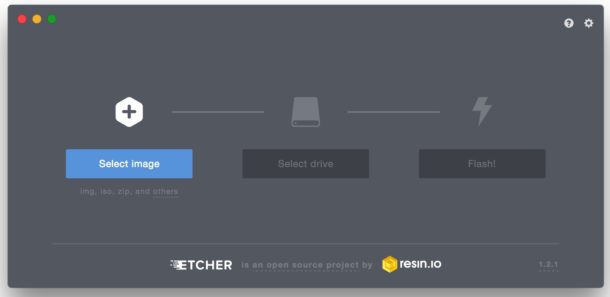

The process may take some time dependingon file size. If you write a .img image to 30GB on a card with 32GB of memory, it will take about an hour and a half. The program will notify you of the end of the process.
After that, take out the SD-card and it will be ready for use for your purposes. Everything is very easy.
Note: Etcher automatically deletes the mounted version of the image from the computer, but this function can be disabled in the settings.
Etcher is available for Mac OS, Windows and Linux, so you can use it on different operating systems.