The Safari browser in iOS 13 has been significantly updated. A download manager has appeared, functions are the same as in the computer version
Advertising
Advertising
This feature is more about editing.screenshots, not Safari, but so far it only works in the browser. We hope that in the future it will be added to Messages, WhatsApp and other instant messengers. Android smartphones have long had such a feature.
How to take a long screenshot in Safari on iPhone
Step 1: On your iPhone or iPad, open the page of the site that you want to capture in the screenshot.
Step 2: Take a screenshot by holdingvolume up button+side buttonor other buttons on older models.
Advertising
Advertising
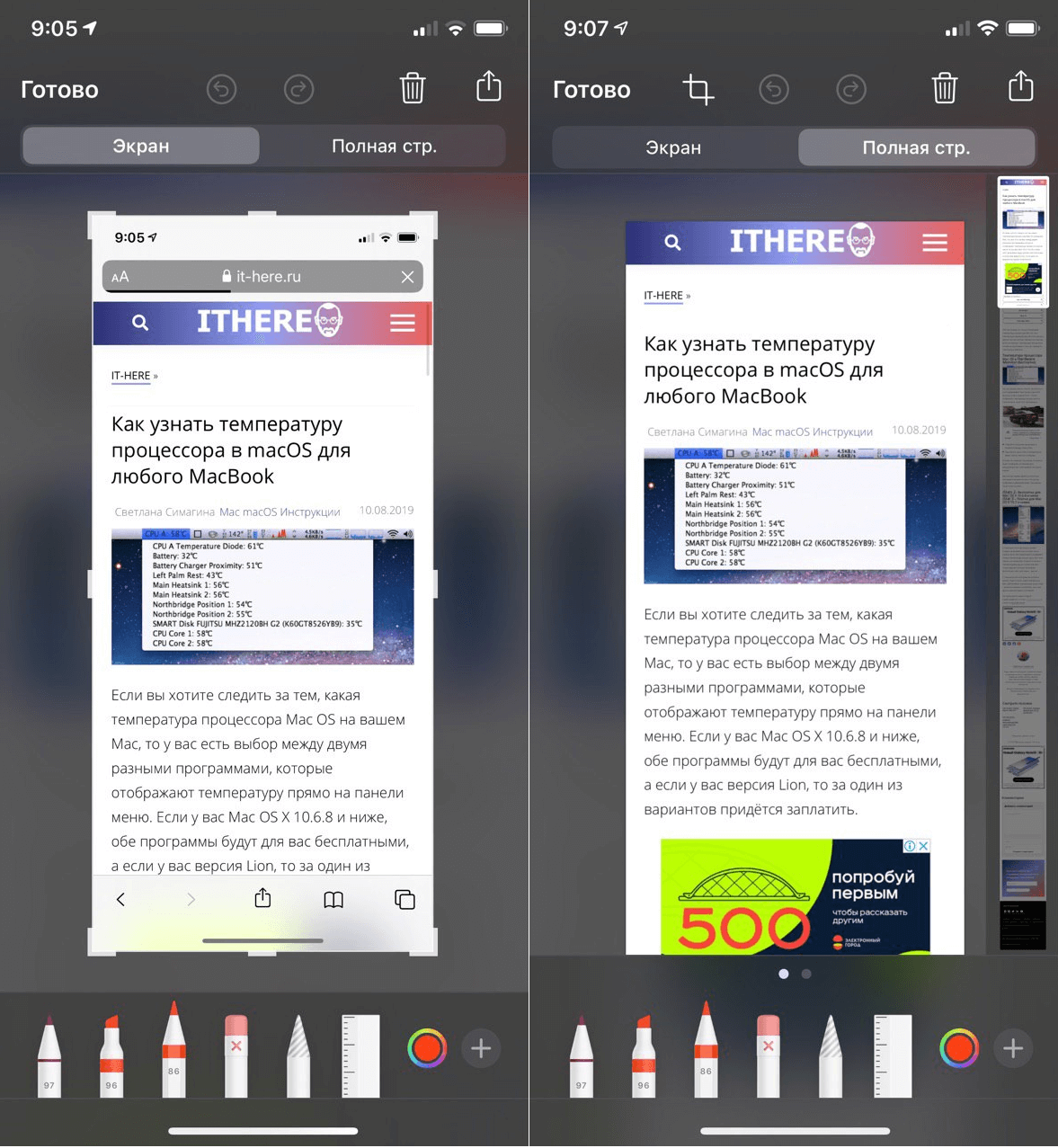

Step 3: A screenshot preview will appear in the lower left corner, click on it.
Step 4: The screenshot editing screen will appear. There will be a new tab at the topFull page. Choose her.
Step 5: A preview with the entire web page is displayed on the screen. Using the scroll indicator on the right, you can view the entire page and use the tools to edit the screenshot.
Step 6: When finished, pressIs done. You can save the screenshot to files or share it right away.
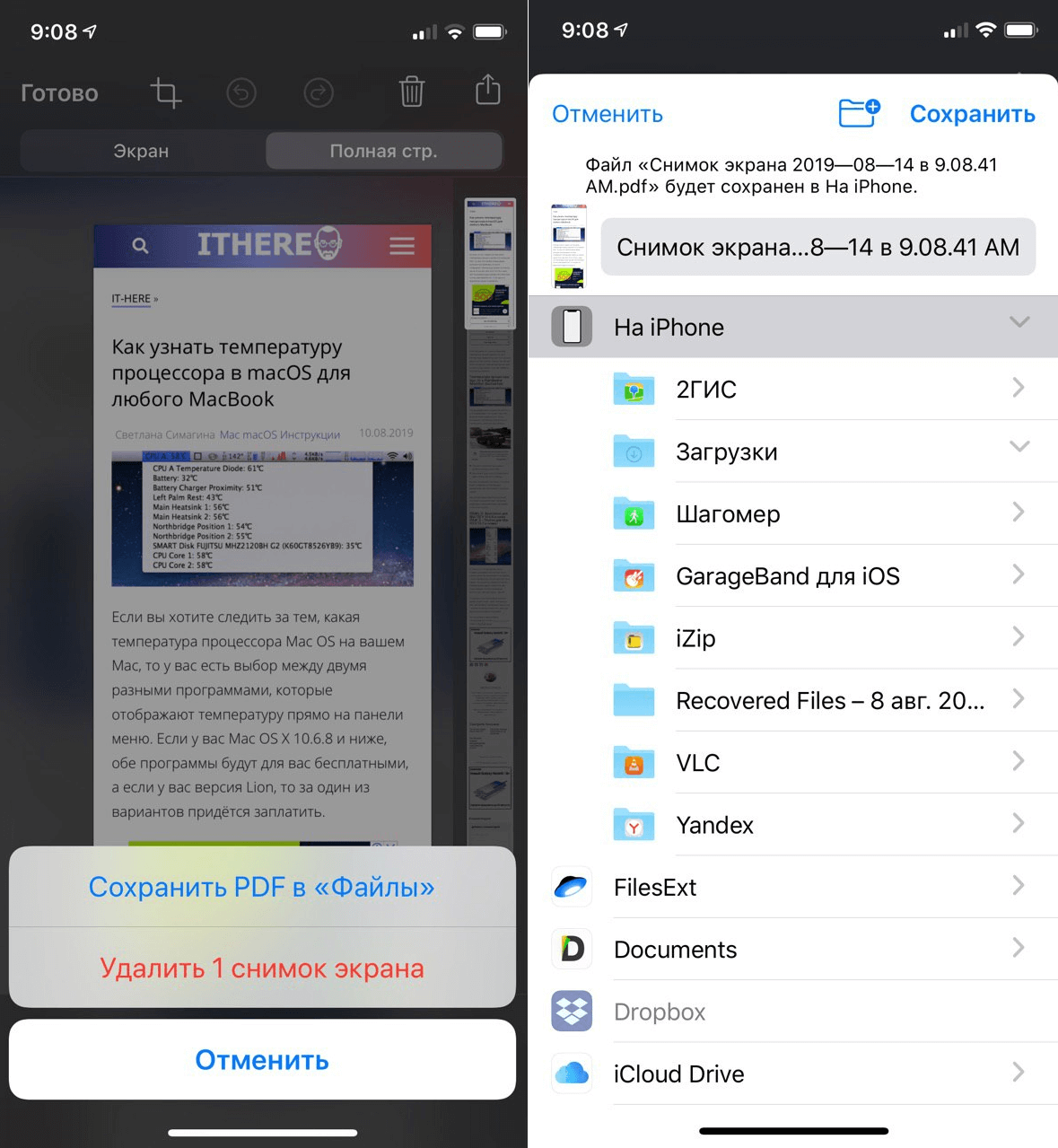

Step 7: Your screenshot will be saved in PDF format. You can open it in Files and send it to any application with format support.