Do you want to learn how to edit and convert videos, but don’t have time to understand complex programs, or
Not every video editor supports 4K,but Digiarty's VideoProc is one of them. And this is important if you plan to process video shot on a GoPro or iPhone. It is also worth noting the large number of supported formats:
- Video: MP4, AVI, FLV, MKS, MOV, MPEG4, H.264, HEVC, WMV, MTS, M2TS, TS, AVCHD, MOD, etc.
- Audio: MP3, AC3, AAC, FLAC, etc.


It is interesting to note that the program is capable47 timesSpeed up your PC with faster CPU and GPU acceleration, plus unique technology that speeds up transcoding and processing, optimizing file size and video quality.
How to install
Go to the official website and you will automatically be taken to the download page for the Mac or Windows version, depending on your device. PressFree downloadto download the program. After downloading.dmg or .exe file, run it to install the program. Done - you have received a free version of the program! There is one limitation in the trial version, but it is significant: you can render videos no longer than 5 minutes long.
To remove the restriction, you need to pay a subscription. There are three options:


- Annual license for one Mac or PC –$ 29.95
- Perpetual license for one Mac or PC –$ 42.95
- Family perpetual license for 2-5 Macs or PCs –$ 57.95
When you purchase the latter option, you receive as a gift the DearMob utility for backing up and transferring data from an iPhone from the same developer.


However, it is not necessary to pay immediately. We recommend that you first test the free version to see if VideoProc is right for you. In addition, you have a chance to win a license: in honor of the launch of the program, developers play 2,000 keys for a perpetual license every day. In addition, you get a chance to win an iPhone XS, AirPods or Lightning cable. You can participate in the draw here.
Video editing
The video editor here is quite basic, soIt won’t be difficult for even a beginner to figure it out. However, this program is not suitable for complex editing, at least due to the lack of transitions and audio effects.
To get started, open the video you want to work with.


Below you will see buttons for quick access to important editing functions.
Cut
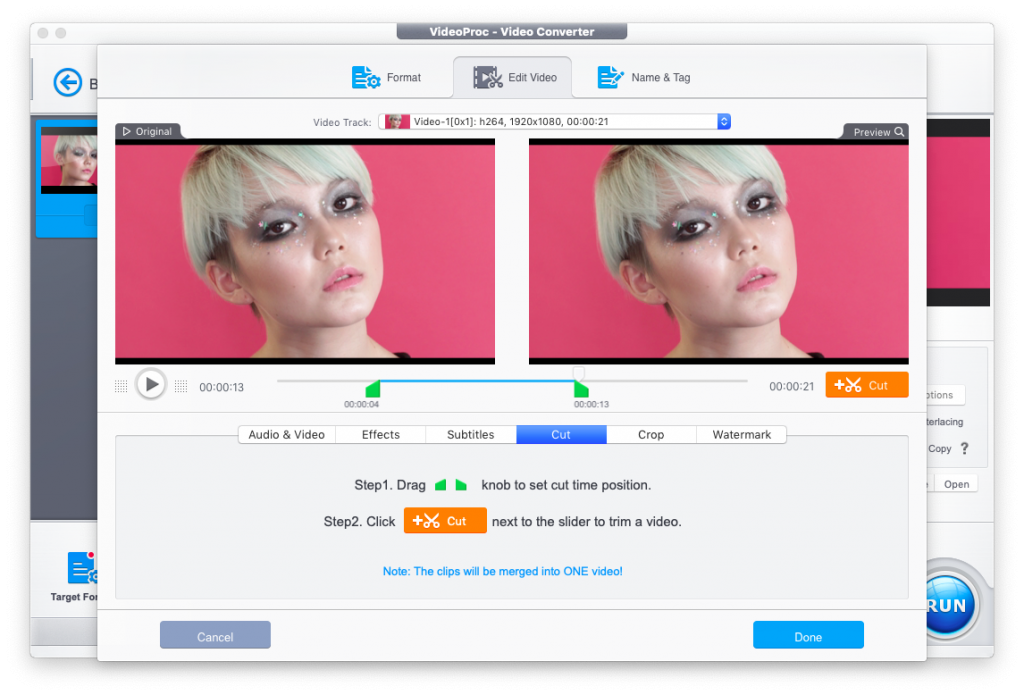

Here you can cut the necessary pieces from the video. To do this, select a segment on the timeline and click the buttonCut. Repeat with the following snippet. Please note: as already mentioned, there are no transitions in VideoProc, so the pieces just stick together without transit effects!
Crop (Crop)


Click on the checkboxEnable Cropto make changes. In the Preset field, select the desired aspect ratio, then move and enlarge or reduce the frame to the desired size and position.
In the left window you see the original video that you are working on, and in the right - a preview after the changes.
Subtitle
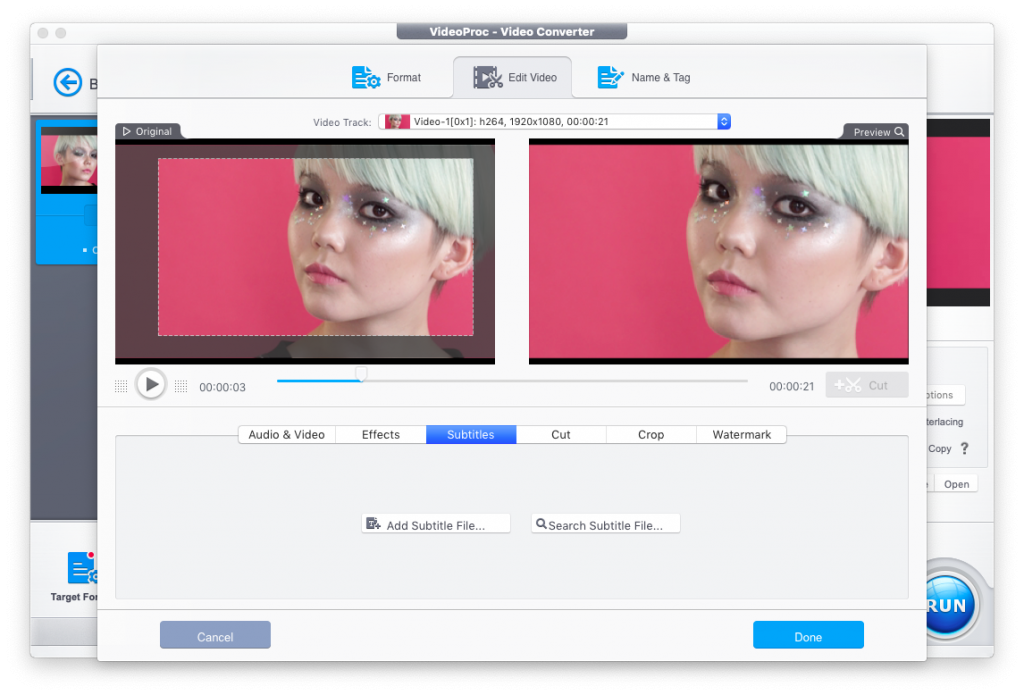

Here you can quickly embed subtitles from a single file into a video. Add your own file (Add Subtitle File) or find subtitles on the Internet.


The search is very convenient: just click on Search Subtitle File, select the type of video (movie or episode of a TV series), enter the title and select the language.
Effects
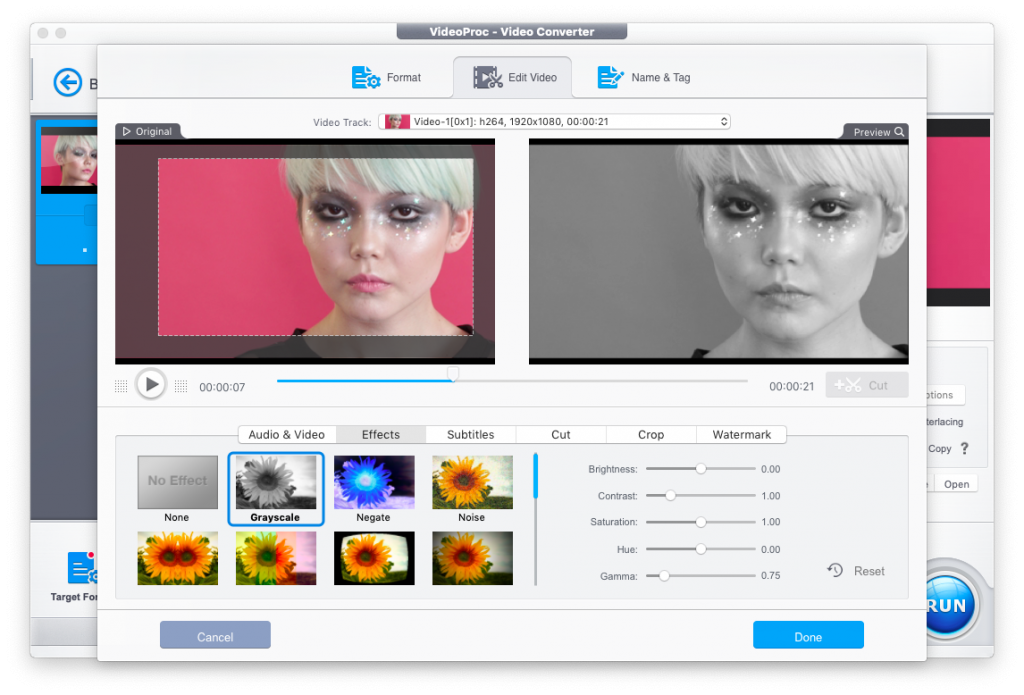

Here you can add one of the simple effects.(B / W, vignette, mirror, etc.), as well as adjust colors using the settings for brightness, contrast, saturation, hue and gamma. Again, no complicated settings, which eliminates the difficult work with color correction, but allows you to quickly improve the video.
Rotate


In one click you can flip the video horizontally or vertically, as well as rotate it 90 degrees.
Watermark
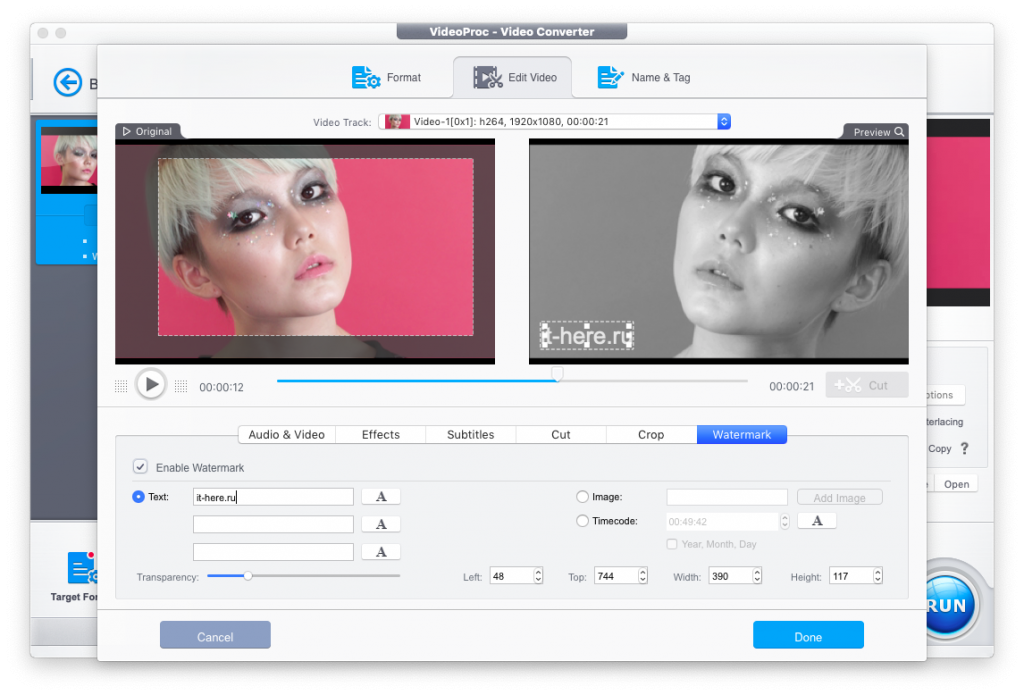

Add a watermark to the video - in the form of text or image. You can customize the font, as well as its color, size, and opacity.
Video conversion
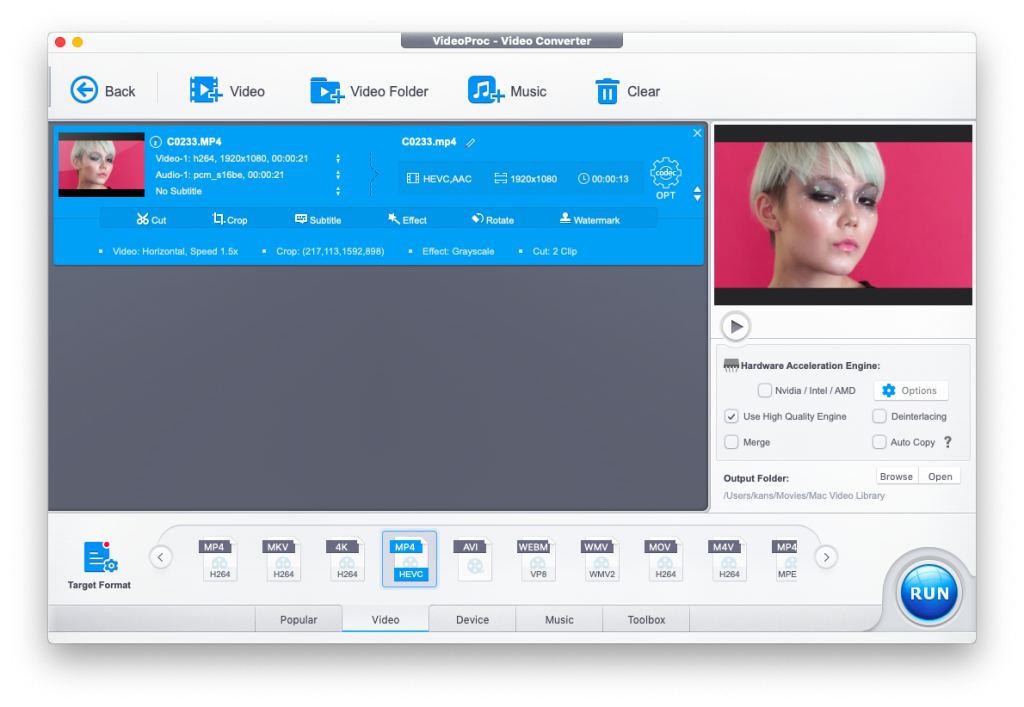

Before exporting, you can select the file format and codec, as well as set the desired video and sound quality and other settings. The format must be selected at the bottom of the window (Target Format).


For more detailed settings, click on the gear labeledcodecnext to your video. Once everything is ready, clickDoneto export the file. If you need to convert several videos at once, clickApply to Allto apply these settings to all uploaded videos.


After that, wait for the export. Green indicates equipment whose operation has been accelerated thanks to VideoProc (in this case it is only the processor).
DVD converter


Although the main focus of VideoProc is onconverting and processing video files, the functionality is not limited to this. For example, thanks to the built-in DVD converter, you can convert the image of any disc to the good old MP4 without losing quality.
Download files from the Internet


Thanks to VideoProc, you can forget about third-partydownloaders from YouTube and other sites. Yes, the program can download video and audio! Just specify the link to the resource from which you want to download the video, and get a list of available options of different quality. You can only download audio separately.
Screen recording
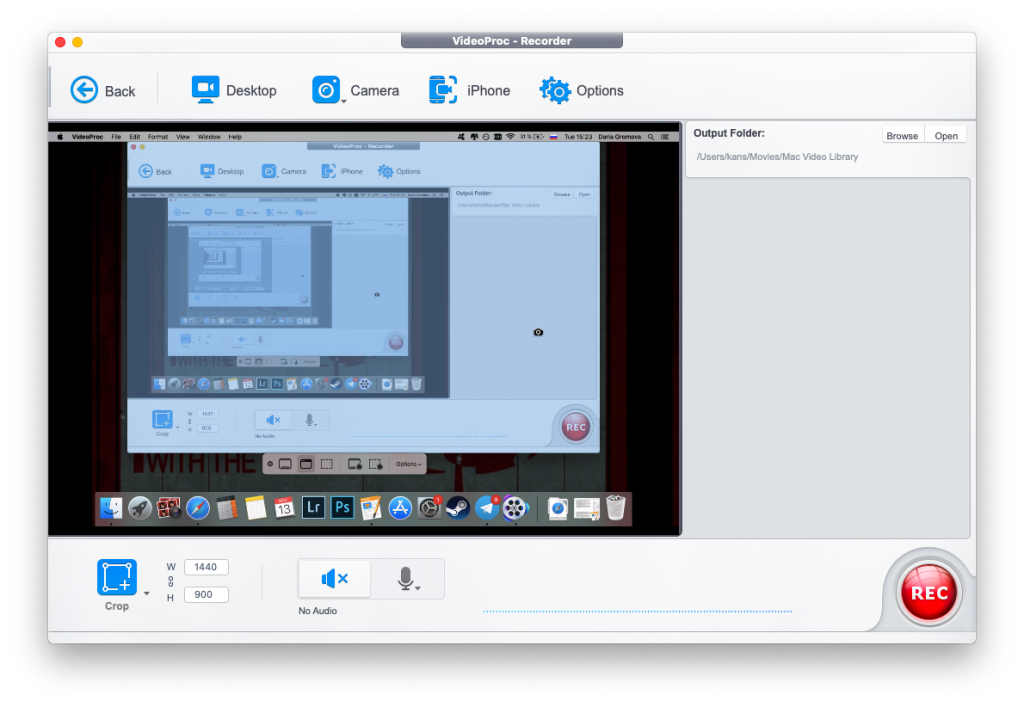

The last feature I would like to mention isscreen recording. You can capture a computer screen, an iPhone, or an image from a webcam. You can also combine the screen and webcam images in picture-in-picture mode. for shooting gaming or educational videos.
Total
VideoProc is a great program forconverting and fast video processing, especially considering the possibility of obtaining a perpetual license for free. Additional features like screen recording, DVD conversion and downloading videos and subtitles from the Internet are a nice bonus for those who do not want to load the computer with unnecessary programs and strive for multifunctionality.
If your goal is not an advanced tool like Final Cut X or Adobe Premiere, but a lightweight, easy-to-use video cutting and enhancement utility, VideoProc will appeal to you.